

This tip was taken from a question addressed to support via email. The tip touches on Chart Annotation, Default Charts, Layouts, and Multi-Link.
Question... I am finding myself using the annotation tool more and more. Is there a way to "assign" an annotation to all charts of a particular instrument/symbol? For example, I open one chart for IMGN... I annotate that first chart with my buy price for the day. Then I wish to open several charts of IMGN at the same time for different periodicities, 1 hour, 15 min, 10 min, 5 min, etc.... I would like to have those new charts be smart and have the annotation built in.
Response... Here is a technique that will accomplish this. Create a traditional chart containing your favorite indicators, periodicity, colors, etc. Add an annotation to the chart. You can add an annotation easily by using the annotation button on the charting toolbar (11th down on left, blue A). Click on that button then click in the chart at the location you would like to place the annotation. Type the following text into the annotation box and then hit Enter…
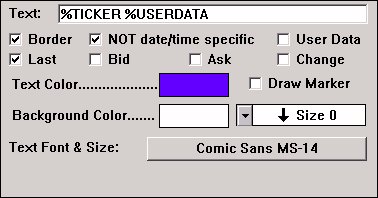
%TICKER %USERDATA
If you now double-click on the annotation, (or select it and hit enter) the preferences will be displayed and should resemble what you see below. If you would not like the current price to show in your annotation, make sure "Last" is unchecked. You can also specify the font and color of the annotation here.
Now you can drag and drop your annotation anywhere you like on your chart. Save the chart under a name like "My Default Chart".
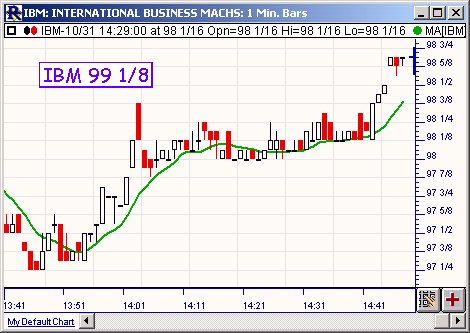
Now go to Setup:Preferences:Charting:General. For Default Chart, choose “Specific Chart” and then choose “My Default Chart” as the specific chart that will be used. Also, you might want to specify here to “Open Default Chart In a New Window” when double-clicking. Now, when you double click on a ticker, the ticker you click on is charted in a new chart window in the format prescribed by "My Default Chart". The annotation will now change with each chart to reflect the ticker symbol and "User data" you have specified for the symbol. The custom text of %USERDATA can be entered for each instrument in Setup:Instruments or by adding the "User Data" data column to a QuotePage and entering your buy price or other notations there. For additional information, see Annotation indicator
Now, double-click several times on your instrument in a QuotePage to open several chart in your prescribed format. The charts will open right in front of each other so you should resize and reposition them as you wish. Now change the periodicities of your charts to the periodicities you would like to see. You may then want to again save your charts with names such as “My Default Chart 5” for your 5 minute chart, “My Default Chart 15” for your 15 minute chart, etc. Once you have saved all your charts, you may want to save this layout by going to “File:Save:Layout”, and specifying a layout name, or even saving it as your startup layout (the layout Investor/RT will use when it first begins). You may just want to use this layout when looking at IMGN, and therefore you could save this layout as “IMGN_Layout” and switch to it whenever you like. You can assign the opening of a layout to a shortcut key (Setup:Preferences:Keyboard Shortcuts) or you can schedule the opening of a layout (Setup:Schedule…).
You can now change the ticker symbol for all charts at once by using the multi-link feature. Right click on the ticker symbol in your quotepage and choose “Multi-Link”. All charts instruments will be replaced with this instrument. And your Annotation will reflect the change.