

Home                           

 Try Investor/RT             

 Investor/RT Tour           

 Getting Started              

 What's New                  

 Testimonials                 


MASTER INDEX
  SEARCH
  CHARTS
  MAIN TOOLBAR
  SETTING PREFERENCES
  TECHNICAL INDICATORS
 
WHAT'S NEW
  ALARMS
  BACKTESTING

  CONFIRMING TRADES
  CUSTOM COLUMNS
  CUSTOM INDICATORS
  CUSTOM INSTRUMENTS
  CUSTOM PRICES
  DATA FEEDS
  DATABASE
  DOWNLOADING DATA
  FEED STATUS
  HEARTBEAT
  HELP
  MULTI-LINKING
  MULTI-PERIODICITY
 
INSTRUMENT SETUP
 
NASDAQ LEVEL II
 
NEWS TICKER
 
NEWS BROWSER
  OPTIMIZATION
  OPTIONS ANALYTICS

  PLACING TRADES
  PORTFOLIOS
  PRESETS
 
PRINTING
  QUICK QUOTES
  QUOTE PAGES
  REALIZATION
  RTL LANGUAGE
  SCANS
  SCHEDULES

  SCOPE
  SYSTEM STATUS
  TICKER TAPE
  TIME AND SALES

 
TRADING NOTES
  USER VARIABLES
  VERTICAL SCALE
MASTER INDEX
DICTIONARY
FEEDBACK

Investor/RT Tour
Charts, General

The Charts, General window, as seen below, is used to specify several advanced charting preference settings . . .
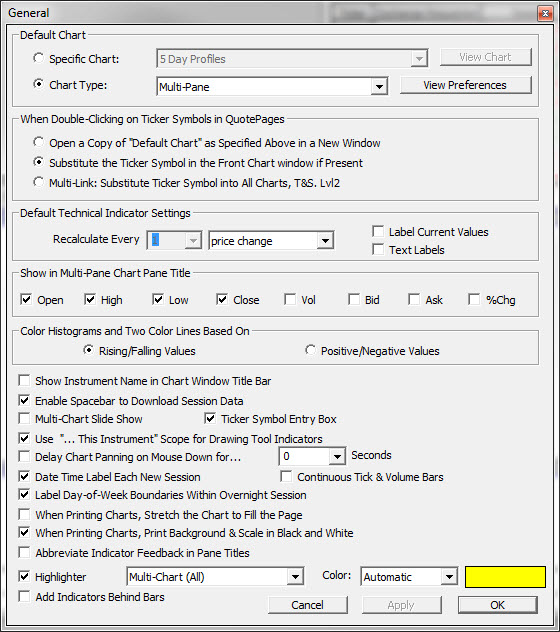
General Chart Preferences

  • Default Chart - The "Default Chart Object" menu is used to specify a default chart object that is used to open new chart windows when a chart is requested for a symbol in a quote page or a quick quote window. For example, if you always want to see certain technical indicators, create a chart object with those indicators and save the chart under a name like "My Default Chart". Then specify "My Default Chart" as the default chart object. Whenever you double-click on a ticker in a quote page, Investor/RT will open "My Default Chart" and insert the ticker you clicked on into the chart.  Leave the "Default Chart Object" checkbox unchecked if you wish the default chart to be a simple chart of the instrument.
  • When Double-Clicking on Ticker Symbols in Quote Pages . . . - This dictates the default behavior response when double-clicking on a ticker symbol within a quotepage.  The choices including opening a new default chart, substituting the ticker symbol into the front most chart,  or multi-linking the symbol into all open charts, Time and Sales, and Level II windows.
  • Default Recalculation Frequency for Technical Indicators - This is the recalculation frequency that will be inherited by technical indicators when they are first added to Traditional Charts.  This frequency can then be changed on the instance level. 
  • Show in Traditional Chart Pane Titles . . . - When chart windows are open, pointing the mouse to a particular point on the chart causes the data for that date/time to be displayed in the chart window pane titles. You can control which data items are shown by checking the appropriate boxes in the "Show Data..." section of this window. 
  • Automatically download when chart data is less than ___ % complete . . . - check the box "Automatically Download historical data..." to activate the Investor/RT "auto download" feature. When opening a chart window, Investor/RT determines if the data on file in the database is sufficient to draw the requested chart.  If Investor/RT determines that more data is needed and the auto download feature is enabled, Investor/RT will attempt to download historical data.  The effect depends on which data service you use, whether you have a Dial/Data account, and whether you own a Momentum CD ROM.  If you subscribe to an Internet data service (DTN.IQ, myTrack, or eSignal) the download request uses the historical data downloading services provided by the service  If your data service is BMI, DTN, or Signal (all serial port data receivers), the download is performed using your Dial/Data account, if you have one. Dial/Data supports daily, weekly, and monthly downloads only. If there is no Dial/Data account, Investor/RT will attempt to download from the Momentum CD ROM. The Momentum CD ROM supplies daily historical data for stocks only via this method.
         The download request executed is based on the periodicity of the chart and the viewing period of the chart being opened. Automatic download also occurs when you switch a chart from one instrument to another or when you change the periodicity of a chart.
  • Multi-Chart Slide Show - This checkbox allows you to specify whether slideshows will use only the one chart that is in focus, or all open charts.  If this checkbox is checked, then all charts will get involved in the slideshow.