

There are a number of format parameters that can be adjusted using this window. The window can be displayed via the Setup Preferences or from within a quote page.
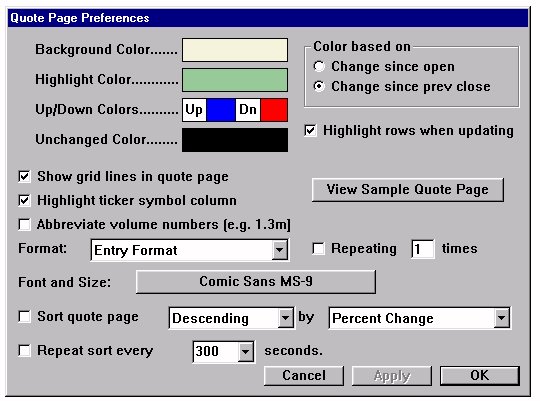
The first few selections allow you to adjust the quote page color.
"Background Color" refers to the window color behind the numbers and text.
For live feed users, "Highlight Background" will accent an instrument as a quote is received for that particular instrument according to your selected color.
"Up/Down Issues" and "Unchanged Issues" allow the user to color code incoming quotes to help distinguish between rising and falling quotes and quotes that have not changed.
Click Open or Previous Close to determine whether you want the quote behavior to reflect change based the opening price for the day or the previous day's closing price.
Click Show Grid Lines to show or hide vertical lines separating the columns on a quote page.
Click Symbol Column Highlighted to accent the symbol column on a quote page.
The Repeating X times feature allows the user to view symbols in a quote page in multiple sets of columns, allowing a compact overview of the contents of a quote page. For example, you may wish to define a quote page format to display only the symbol and last quote. Then set the repeating variable to 4. Your quote page would then display a total of eight columns, four sets each displaying symbol and last quote.
Note: for any repeating variable setting other than one, the column headings are fixed.
The format drop-down menu allows you to reset the column heading format according to your predefined alternatives. If no selection is made from this menu, no change is made to the default format.
One tool on this page varies depending on whether you are viewing this window from the Default Preferences window or using the Quote Page preferences tool.
The Sample Quote Page button, available from Default Preferences, allows you to view a sample of the quote page format you have just created.
Reset to Defaults, available from Quote Page Preferences, sets a quote page's preference settings to the global default settings.