

Submitted by linnsoft on Tue, 04/23/2013 - 20:47
See Also: Raw Tick Charts
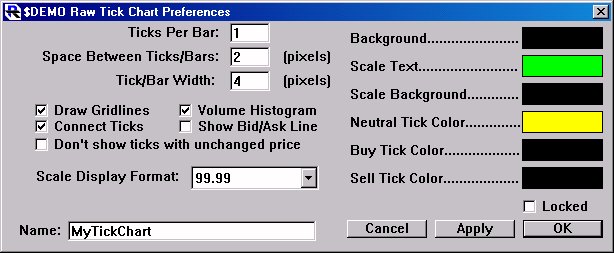
- Ticks Per Bar - You may specify how many ticks you have within each bar on the chart.
- Space between ticks - You may specify how much space (in pixels) you would like between each tick on the chart. **SHORTCUT KEY** The up and down arrows provide you with a short cut to this preference. The up arrow increase the spacing by 1 pixel, while the down arrow decreases the spacing by 1 pixel.
- Tick size - You may specify how large (in pixel diameter) that you would like each tick to be. **SHORTCUT KEY** The right and left arrow keys provide you with a short cut to this preference. The right arrow increases the size by 2 pixels while the left arrow decreases the size by 2 pixels.
- Draw Gridlines - This checkbox allows you to turn the gridlines on the chart on and off.
- Connect Ticks - This checkbox allows you to specify whether you would like a line drawn between each tick.
- Don't show ticks with unchanged price - This checkbox allows you to condense your tick chart so that only ticks that have changed price from the last tick on the chart will be shown. If you check this option, the volume of all ticks composing the unchanged tick will be summed for feedback in the message box. **SHORTCUT KEY** The 'tab' key allows you to toggle this option on and off without visiting the preferences window.
- Volume Histogram Color - This checkbox allows you to turn the Volume Histogram background on or off.
- Show Bid/Ask Line - This checkbox allows you to turn the Bid/Ask line on or off.
- Scale Display Format - This option allows you to change the formats of the ticks coming in i.e. 99.999, X10, X 100, Fractions, 32nd, etc.
- Background Color - This is the color of the background of the chart itself.
- Scale Text Color - This is the color of the text in the scale and the message box.
- Scale Background Color - This is the color of the scale background and the message box background
- Neutral Tick Color - This is the color of the ticks that traded between the bid and the ask.
- Buy Tick Color - This is the color of the ticks that traded at or above the ask.
- Sell Tick Color - This is the color of the ticks that traded at or below the bid.
- Locked - This is a check box that will "Lock" the ticker symbol so that it can not be changed to multi-linked.