Investor/RT has "sound effects" capabilities which allow the user to customize the alert sounds associated with particular events. To setup alert sound preferences, choose Setup>Preferences>Sounds or use the main toolbar to access Preferences and choose Sounds. A list of Investor/RT "events" appears on the left of the window and a list of available sounds on the right.
For adding additional custom sound files, please review this procedure
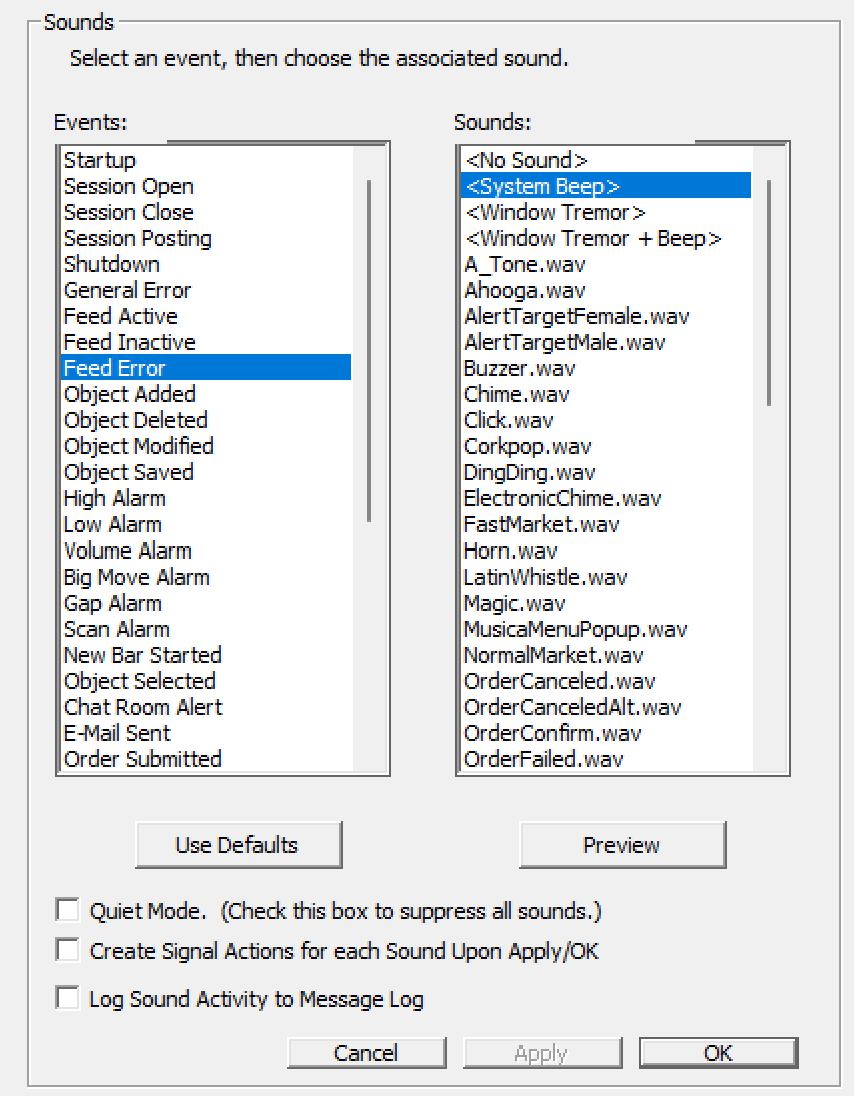
At present, the following generic events are supported (in bold, the sounds alerts frequently activated by I/RT users):
- Startup : Investor/RT is starting up.
- Session Open / Close : A session is now open / close for trading.
- Session Posting : Recording historical data for the session has begun
- Shutdown : Investor/RT is quitting.
- General Error : Any error condition
- Feed Inactive : Continuous data feed has been inactive for at least a minute.
- Feed Active : Continuous data feed is again active (after an inactive or work offline period)
- Feed Error : An error occurred reading data from the data receiver
- Object Added : A new object (an instrument, quote page, portfolio, etc.) was successfully added to the database.
- Object Deleted / Modified / Saved : An object was successfully deleted from the database / modified / saved
- Object Selected : A new object (an instrument, quote page, portfolio, etc.) was successfully selected/highlighted with the mouse
- High / Low Alarm : An instrument triggered a price alarm by reaching or exceeding the high (resp Low) price specified.
- Volume Alarm : An instrument triggered a volume alarm by reaching or exceeding the specified volume
- Big Move Alarm : A stock exceeded the "Big Move" criteria specified in Setup:Preferences:Stock Alarms.
- Gap Alarm : A stock exceeded the "Gap" criteria specified in Setup:Preferences:Stock Alarms.
- Scan Alarm : A scan completed (manual or auto-run) and detected one or more instruments satisfying the criteria specified in the scan request.
- Chat room Alert : no more in use
- E-Mail Sent / Failed : associated with the Sent email task which can be set up inside a Schedule
- Order submitted / Filled / Partial Fill / Cancled / Rejected / Failed / evised / Suspended / Activated : a specific sound alert can be associated with any of this tarding order execution status (knowing the corresponding trading order action will be listed in the message and trading log)
- Fast / Normal market conditions : will trigger a sound alert whenver the "fast market" conditions are in force
- RTX Build OK / Fail : for RTX developpers using the integrated RTX indicator setup wizard
- Exceptional error : major system error (will also appear in the message log)
To associate a particular sound with an event, first select the event and then select the sound to be associated with the selected event.
When you select an event, Investor/RT immediately highlights the sound currently associated with the event. You may listen to the selected sound by pressing the Preview button, or by double-clicking any sound or any event. Keep in mind, clicking or double-clicking a sound causes that sound to be associated with the selected event.
To turn off the sound associated with an event, select the event and choose <No Sound> at the top of the sound list. To reset all sound settings to the "System Default" settings click the "Use Defaults" button. The defaults settings are to use the system default sound for most events or no sound at all.
Platform Specific Information Windows users: The sounds listed on the right are ".WAV" files stored in the C > Program Files > LinnSoft > InvestorRT > Sounds directory. A few sample .WAV sound files are provided with Investor/RT. To add more sounds, copy additional .WAV files into the sounds directory. Then choose Setup:Preferences:Sounds and the new sounds will appear for assignment to Investor/RT events.
Note : These are sounds alerts are linked to some generic events. Most users will customize their specific sound alerts by setting up dedicated signal action (associated with signal markers). Please note that sound alerts troigerred by signal action or reference line have mainly replaced the generic legacy "alarms" (such as the high / low alarms, gap or bug move alarms)
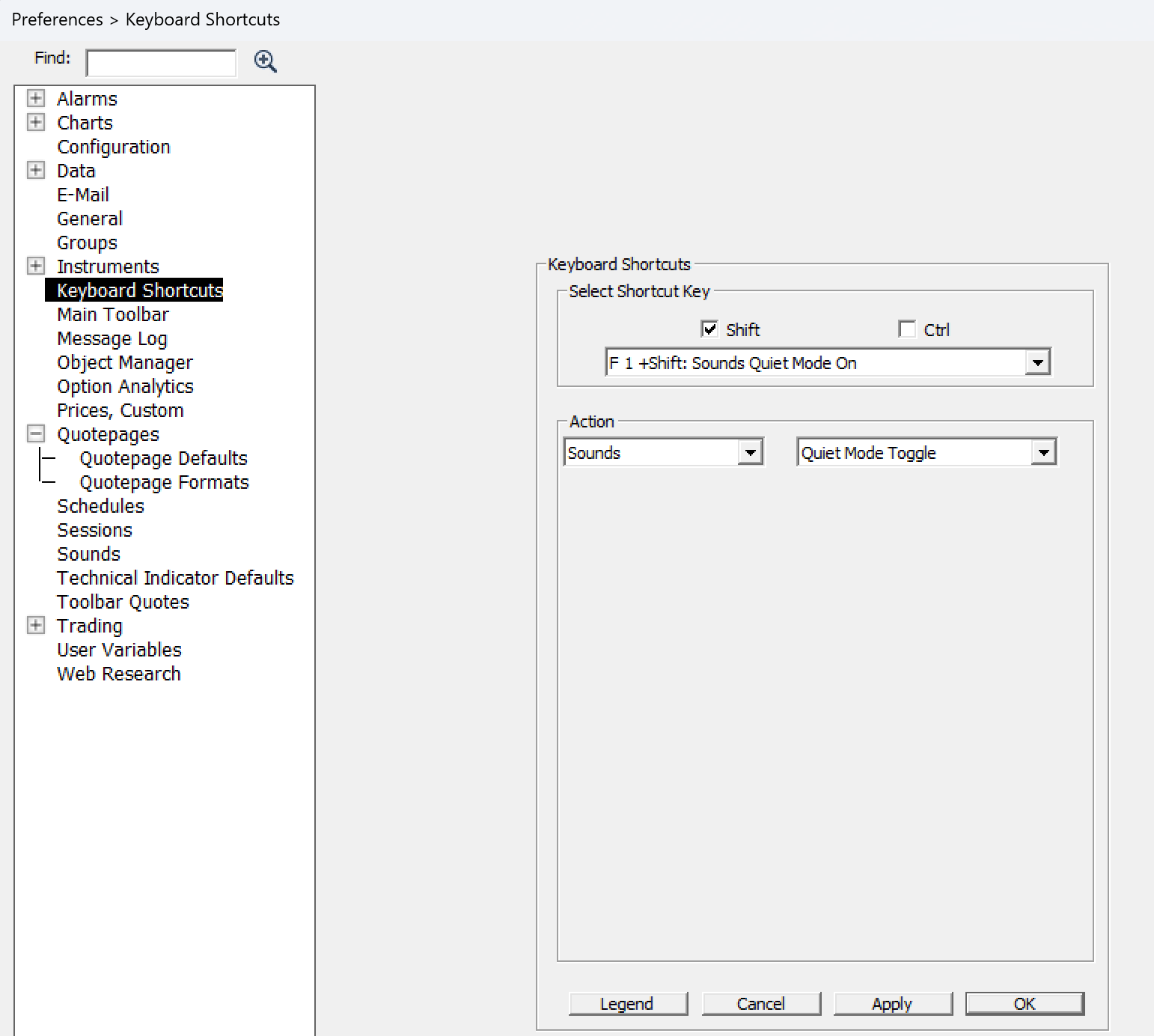
Quiet Mode On/Off : by checking the quiet mode check box, all sounds alert will be deactivated. If you want to control the sounds toggle on/off action, you can do that by setting up a function key with the corrersponding action (see screenhot below). If you want to control the sounds on/off through a chart button, just set up a chart button with the purpose "ShortCut Key" - Any action that can be configured through a keyboard shortcut can be activated this way through a button