

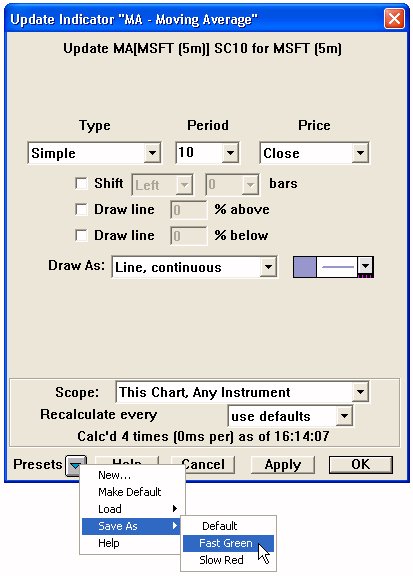
The Preset Popup Button The preset popup button can be found at the bottom of all technical indicator preference windows. Clicking on the button initiates a popup window as seen below.
What is a Preset? Prior to Version 5.0, default preferences for technical indicator were limited to one set of default settings per indicator. "Setup: Preferences: Charts: Traditional Charts: Technical Indicators" was (and still is) the place to specify your favorite settings for each of the indicators you utilize, although now, the default preferences can be setup from any technical indicator preference window.. Often it is desirable to have several sets of preferences per indicator, especially with some of the more complex indicators where there may be many useful combinations of settings that are often used. Presets give the user the ability to save multiple sets of preferences for each indicator, and provide a name for each set of preferences. In general, you may create as many presets per indicator as you wish.
The preset button can be found at the bottom of any Technical Indicator preference window, to the left of the "Help" button. Clicking on the Preset button initiates a popup window with several options...
- New... Choosing this option will bring up the following window.
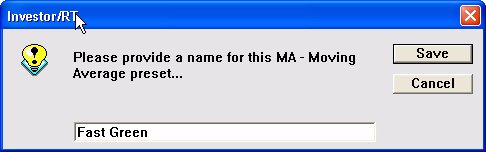 Each preset is saved with a name for future reference. The preferences shown in the window will be saved under the name given.
 - Make Default Choosing this option will save the current settings as the default preferences for that indicator. In essence, it replaces the default preferences with the current visible preferences.
- Load This option allows the user to reset the visible preferences in the current window to a previously saved preset. In other words, it will "Load" the chosen presets settings into the visible preference window If you have not yet saved any presets for this indicator, you will see only the choice "Default" in the popup list. "Default" will always be the first choice in this list, and allows you to reset the current settings back to the saved default settings.
- Save As This option allows the user to quickly replace any existing (previously created) preset with the setting currently visible in the preset window. In other words, it saves the visible preferences in the preset chosen from the submenu, thereby replaced the existing presets preferences with new ones (those that are currently visible).
How and when would I use presets? Presets can be especially valuable for an indicator which have a great deal of settings involved and when the user likes to use this indicator with various combinations of these settings. Let's take Fibonacci Retracements for example. As is evident from the image above, the Fibonacci Retracement indicator provides quite a few choices to the user. A user may have several different sets of retracement levels that he likes to use in different situations. It can be very tedious to have to setup the preferences each time a Fibonacci Retracement is added to a chart. With Presets, you can set it once, save it, and quickly retrieve it in the future.
The user has the option of saving presets in any of the various places in Investor/RT that technical indicator preferences windows exist, including the scan setup window, the "Add Technical Indicator" window for charts, the "Update Technical Indicator" window for charts, and the "Default Technical Indicator Window" that is accessed from "Setup: Prefs: Charts: Technical Indicators". With this flexibility, you can setup your presets beforehand or on the fly as you discover new combinations that work well.
To save a new Preset, simply set your preferences as you like, and then click the "Preset" button at the bottom, and then choose "New..." and give your Preset a name. If you would like to save the current settings as the default settings for that indicator, then choose "Make Default". To reset the preferences to a saved preset, simply click on the Preset button and then select "Load". You will see a list of presets beginning with the "Default" choice. If you choose "Default", your settings will be reset to the default preferences. If you have saved other presets for this indicator, you will see them listed below default. Selecting one of these will reset the preferences to those presets.
Using Presets In Chart Buttons You can also add "Buttons" to your charts assigning the button a purpose of "Add/Remove Preset Indicator" and any preset name. When you click such a button in your chart, IRT will add the associated indicator with the preset preferences to the chart (it will remove the indicator if you click the button again).