

This Tutorial will be helpful in the following areas...
- Saving QuotePage Formats...
- Create a QuotePage Format for Alarm Maintenance...
- Switching between QuotePage Formats...
Let's say you have created a quotepage with your favorite symbols, displaying your favorite columns in the preferred order. In Investor/RT, the columns in the QuotePage and the order of those columns is known as a QuotePage Format. You can have as many QuotePage Formats as you like. These QuotePage Formats can be created and saved by going to Setup Preferences: Formats. But you would like to create a format based on a QuotePage you have already built. No problem!
Open the QuotePage from which you would like to create the format, and click on the Change Format  Button in the QuotePage toolbar while holding down the Shift key. This will bring up the Setup QuotePage Format window, and fill the columns in the quotepage in the data items list on the right. Now, just click the Save As button, and give the format a name, let's call it myFormat.
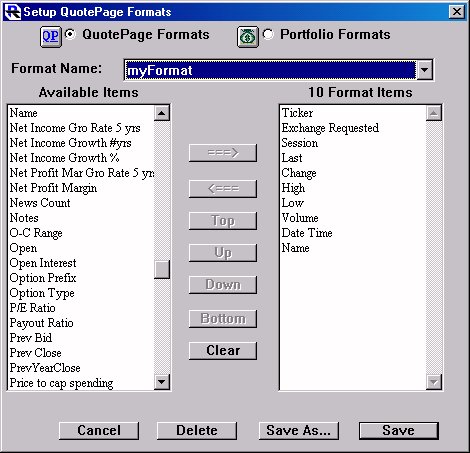
Now that you have saved your format, you can change the column format in the quote in any way you like, and come back to the saved myFormat at any point in the future. To change the format of a QuotePage, simply click on the Change Format Button in the QuotePage toolbar, select the Format you want, and click OK. To experiment with various formats, click a Apply instead. This leaves the format selection window open so you can apply other formats and observe the effect in the quote page.
Now let's modify our QuotePage to create a QuotePage Format that will be helpful in maintaining alarms. First, we remove all columns from the QuotePage except the Ticker column. Columns can be removed by either dragging the column heading off the top of the quotepage window, or by right clicking (control-click on Macintosh) on the column heading and choosing Delete Column.
Once the QuotePage is reduced to one column (the Ticker), start adding the appropriate columns for Alarms. We suggest adding the following and arranging them in this order: LoAlarm Step, LoAlarm, Last, HiAlarm, Hi Alarm Step. So your QuotePage should have a total of six columns including the Ticker column and it should look something like this...
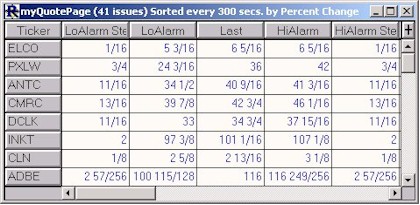
Now save your new QuotePage format by Shift-Clicking on the Change Format Button in the QuotePage toolbar, then clicking Save As, and then giving it a name such as AlertFormat. Now you are ready. At any time, you can switch back and forth between your favorite format and your Alarms Maintenance format by simply clicking on the Change Format Button and choosing the format. You can also switch any other QuotePage to either of the formats by following the same procedure.
So how is our new Alarms QuotePage Format (AlertFormat) useful? Well, you can now get a look at all your high and low alarm levels, your alarm steps, and the state of your alarms in one window for all Instruments. You can also compare these numbers with the Last price and edit them directly from the quotepage. The HiAlarm and LoAlarm columns represent the Hi Alarm and Lo Alarm levels respectively. If an A or B is appended to the alarm level, this means that the alarm is set on the Ask or Bid respectively...otherwise, it is set on the Last. If an OFF is appended to the alarm level, this means that the alarm is currently turned off. If a !! is appended to the alarm level, this means that the alarm has reached this alarm level and triggered. If you don't see either an OFF or a !! after the alarm level, then the alarm is on and monitoring for the price to reach that level. If you see an alarm that is OFF and you would like to turn it back on, simply edit the alarm level to the level you would like and it will be turned back on to this level. The editing can be done directly in the proper quotepage cell. When editing cells in a quote page, remember to press the enter or return key when you have completed your editing.
The columns LoAlarm Step and HiAlarm Step represent the step values for the low and high alarms respectively. Steps are explained in more detail in here Alarms / Alerts. If there is a value of zero for the step, this means that no stepping will occur. You can edit these columns directly in the QuotePage. If stepping is turned on for the HiAlarm, then the HiAlarm will always be turned on, and you will never see a OFF or a !! appended to the HiAlarm level. Whenever a high alarm triggers, it will get stepped up and reset automatically. You can specify an alarm sound or request an alarm notification window or other alarm actions by checking the appropriate checkboxes in Setup: Preferences: Alarms.