

New Alarm Window
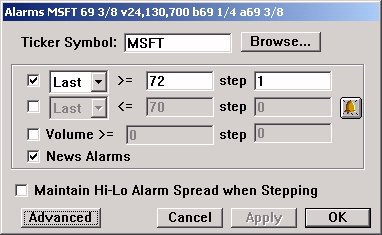
Alarms have their own window which can be accessed by right clicking on a ticker symbol in a quotepage and choosing "Alarms". The Alarm window can be seen below:
Automatic Stepping and Resetting of Alarms
High, Low, and Volume alarms have been enhanced with a Step capability. If a value greater than zero is specified in the step field, that value will be used to move the alarm once it is triggered. For instance, if you have a hi alarm set on the last price of MSFT at 72, with a step of 1, then when MSFT hits 72 or greater, the alarm will be triggered, and the alarm will be reset to a value equal to the price which broke the alarm plus one (most likely 72+1 = 73). If MSFT continues to climb, and hits 73, then the alarm will again be triggered, and reset at 74, and so forth. Same applies to volume and low alarms, except for the low alarms, the step value is actually subtracted from the alarm level to create the new alarm level.
If the step function is turned off, such as it is for the Lo Alarm in the window above, and the price reaches the alarm level, then the alarm will essentially be triggered and turned off. This is represented in the alarm window by a bell  to the right of the alarm. You can reset the alarm either by clicking on the bell or by checking the checkbox again to the left of the alarm. You may want to adjust your alarm level to reflect the latest price of the instrument.
There is also an option to "Maintain the Hi-Lo Alarm Spread when Stepping". By checking this checkbox, you are telling Investor/RT that you would like the difference between your high and low alarms to always remain constant. If a high alarm is hit, and stepped up one point, then the low alarm will also be raised one point (assuming you have a low alarm set). This way, you can keep your alarms tight around the current price and be notified of retracements.
Email Alerts
The preferences window entitle Email Alert Preferences can be accessed by choosing "Alerts" from the Setup Prefs list, or by clicking on the Advanced button in the Alarms window, as seen above. The Email Alert Preferences window is seen below:
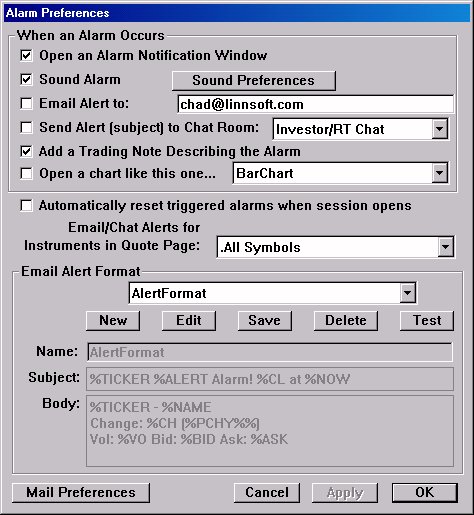
In the top part of the window, you can create, edit, and delete formats which will be for the subject and body of the email alerts. These custom messages can be composed of any text and data tokens. Data tokens are composed of any primitive or historical RTL token prefixed with a %. For instance, if you want the ticker symbol in your message, you would use %TICKER. If you would like the volume, %VO, etc. If you want an actual "%" to show up as text in the line, use "%%".
In the window above, the subject has the format "%TICKER @ %CL %PCHY%% %VO". If an hi alarm triggered on MSFT, you might see the alarm subject of "MSFT @ 70 13/16 +2/06% 4,008,700".
If you would like your alerts to be sent to an email address or group of email addresses, first check the "Email Alerts" checkbox. To the right, select the quotepage. This quotepage will specify which group of symbols you would like to have alerts emailed for. If you would like all your alerts emailed, then choose the ".All Symbols" quotepage from the list. Finally, specify an email address, or list of email addresses, in the "Email Address" field. If you specify multiple addresses, be sure to separate them with a comma.
Chat Alerts
If you would like for your alerts to be sent into a chat room, check the "Send Alert to Chat Room" checkbox, and specify the chat room from the list to the right. The message sent to the chat room will follow the "Subject" format of the Email Format. Again, alerts will only be sent on symbols in the quotepage chosen.
A word of caution on chat alerts. You must be careful when sending your alerts to a chat room, especially if you are sending them to a crowded chat room. If one of your symbols really starts moving, and the chat room starts getting flooded with your alerts, you could annoy other participants of the chat.