

- The standalone Point and Figure charts have been largely replaced by the Point and Figure periodicity of Traditional Charts.
See Also: Point and Figure Preferences See Also: Processing Data For Point and Figure Charts See Also: Point And Figure Indicator
Investor/RT provides classic point and figure charting. Daily, weekly, monthly, and intra-day point and figure charts are supported. Intra-day point and figure charts update dynamically as trades occur.
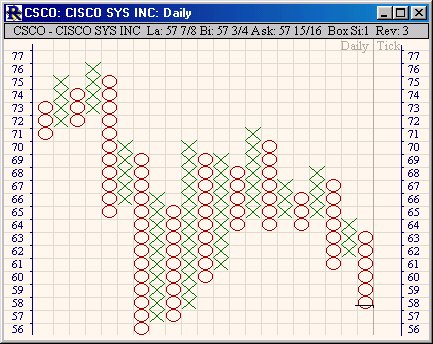
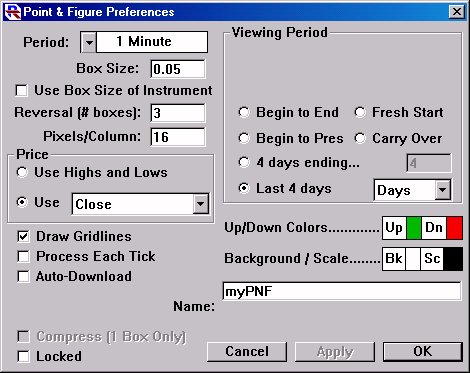
A point and figure chart window shows price movement and reversals as columns of X's and O's. The X columns represent periods of rising price movement, the O columns falling prices. New columns are added whenever the price trend changes according to user specified reversal criteria. Each X or 0 represents a realized price change of a certain user specified amount, called the box size. The reversal criterion is then expressed in terms of the number of box sizes the price must move in the opposite direction to warrant starting a new column. Point and figure chart windows show the X's and O's for one instrument.
Pointing the mouse pointer at a particular column causes the message area at the top of the window to display the price and time that the trend began and ended. Since a column's start and end time is determined strictly from price movement, there is no horizontal axis per se. The vertical scale is drawn on the left. Double-clicking (or right- clicking/command-clicking) inside a point and figure window opens a familiar chart preferences window in which you may adjust the view period, change the box size or reversal criterion, adjust color settings, and change the name of the chart object. The left to right spacing of the columns may also be adjusted using the up and down arrow keys on the keyboard. The reversal criterion may be adjusted as well using the left and right arrow keys on the keyboard. The rightmost (most current) column will show a horizontal dash drawn through the X's or O's to indicate the current trading price. The last trade is also shown in message area at the top of the chart.
The point and figure chart window has no toolbar. To save a point and figure chart object use File:Save from the menu bar. To switch the point and figure chart to a different instrument, simply begin typing the first few letters of the desired instrument's ticker symbol. An instrument selector window will appear automatically. When the desired instrument is identified, press enter or return to switch the point and figure chart to the selected instrument. Point and figure charts use many of the same charting preferences as traditional time-based charts. Under Setup:Preferences, a new section called "Charting, Pt. & Fig." has been added for specifying global preferences when creating new point and figure charts. To create a new point and figure chart, choose File:New:Chart or click the chart icon on the main toolbar and pick "New". When the "Create New Chart" window appears, choose graph type "Point & Figure", set the desired time frame, choose the instrument by double-clicking or select the instrument and press the OK button.
If you have a traditional chart window open, e.g. a bar chart with volume, and you wish to switch to a point and figure chart, then double-click in the chart sub window containing the instrument you want. When the "Update Instrument" window appears, change the graph type to "point and figure" and press the OK button. The traditional chart will then be replaced by a point and figure chart for the same instrument. To view a traditional chart, double-click in the message area at the top of the point and figure chart. Double-clicking anywhere else in the point and figure chart brings up the preferences setting window for the chart. The names of saved point and figure charts will appear along with the name of traditional charts in the Objects:Charts menu and in the list selection window for chart objects. Like traditional charts, any saved point and figure chart may saved as a part of a layout. Similarly, point and figure charts left open when quitting Investor/RT will automatically be opened the next time Investor/RT starts. Point and Figure charts may be printed. Use the File:Print command in the menu bar or click the Print icon in main toolbar when the point and figure chart is the active window. At present, point and figure charts may NOT be used in conjunction with the slide show feature of Investor/RT. This is a area for future development.
Trendlines and Reference Lines
Drawing trendlines and horizontal reference lines on PNF charts
- To draw a horizontal reference line, just shift-click at the horizontal level in the chart where you'd like your line drawn...
- To remove that horizontal reference line...just shift-click on the line again.
- To remove all reference lines, just shift-double-click.
- To draw a trendline, ctrl-Shift-click and drag.....keep the ctrl-shift depressed and the left mouse down while dragging...mouse up when you're done drawing the trendline.
- To remove all trendlines, just ctrl-shift-double-click in the chart...
Box Size
Regarding box size...some of you may not know that each instrument has it's own "Box Size". You can view the box size of any instrument but adding the "Box Size" column to a quotepage. The way this instrument property was used in the past was somewhat confusing, but I've modified it's use to make things clear. Instead of going into the confusing story of how it was used, let me tell you how you can use it in 5.4.3 forward... Box Size is a property I feel should be unique to the target symbol...that is the reason for giving each symbol it's own box size. A symbol that trades at 1500 might have a box size of 1, while a symbol that trades at 30 may have a box size of 0.25.
There are two ways to SET the box size of a symbol. You can edit the appropriate cell directly in a quotepage, or you can use run a scan that set's the box size for a whole list of instruments at once. For instance, if you wanted to set the box size of an entire quotepage to 0.25, you would run this scan on your target quotepage... SET(BOX, 0.25) However, if you wanted to set the box size based on the current price of the instrument...which I feel is more appropriate....you might do this... SET(BOX, ROU(CL / 200, 0.05) ) This will set the box size to the current price divide by 200...then rounded to the nearest nickel.... You may want to tweak it to you preferences, maybe dividing by 100 and rounding to the nearest dime, etc.... SET(BOX, ROU(CL / 100) 0.10 ) ) You're not required to set the box size, however. I have not added an option to all PNF Charts, PNF Indicators, and PNF tokens....to give you the option of using the box size of the underlying instrument, or using the box size you specify in the chart or indicator preferences. The checkbox is labeled "Use Box Size of Instrument". If this checkbox is checked. Then the box size of the underlying instrument will be used when calculating the PNF columns. If this column is unchecked, then you will be able to supply your own box size in the preferences. Here are a few instances where this "Use Box Size of Instrument" can really come in handy.
Let's say you are running a scan on a quotepage of 200 symbols to look for reversals, but you don't want to use the same box size for all 200....you want to base it on price. You can first run a scan that sets the box size (as we discussed above). Then you can run a scan using a PNF token setup for "Use Box Size of Instrument"....and each PNF value will be evaluated with the underlying box size of the instrument...instead of using the same box size for each one (which would happen if the checkbox is unchecked). Also, if you have a PNF chart open...and you like to switch symbols frequently by just typing the symbols into the chart, or double-clicking on the symbol in a quotepage...but you don't want to use the same box size for each symbol...there now is a checkbox in the PNF Chart preferences for "Use Box Size of Instrument". When this is checked...changing the symbol in the chart will change the box size of the chart to reflect the box size of the new symbol. The same would apply if you had a PNF indicator added to a traditional chart... You have the same option here. You may want to run you SET scan every day to reflect the current price...or maybe just schedule it to run every morning before the open.
Title Bar
The title bar updates with current information of bid, ask, and last prices, on each tick. As you scroll over the past columns, this title bars will update to show information about that column. Sometimes the live updating can get in the way of reviewing information on past bars. This live messaging can be toggled on/off using the tab key on your keyboard. When live messaging is off, you'll be able to review data on past columns without the live information replacing that text.