

Investor/RT provides numerous preference settings that enable the user to customize the operation of the application. Some of these preferences are general in nature, that is, they govern the overall operation of some aspect of the application. General preferences are such things as retention periods for historical data or news items, default window background and text colors, session start and stop times, toolbar style, etc.
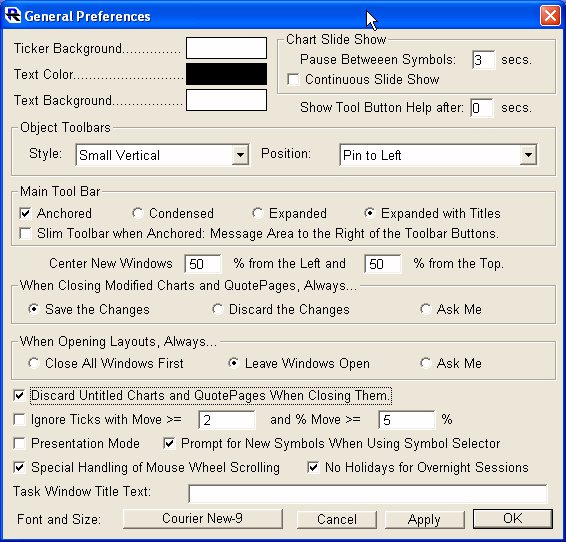
General Preferences
The General Preferences window is used to specify a variety of miscellaneous preferences.
Colors
The Foreground and Background colors for text windows and ticker tapes can be specified by clicking on the color rectangles. The "Font & Size" button at the bottom of the window, specifies the font, style, and size to be used when displaying text windows (news stories, status windows, etc.). This font and size is also used when printing text windows.
Main Toolbar Settings
Checkboxes and radio buttons are provided for setting the appearance of the main toolbar. Main toolbar options include: Anchored: The main toolbar is anchored in a fixed position tucked under the main menu bar at the top of the screen. If unchecked, the main toolbar "floats" wherever you like on the screen. Condensed or Expanded: When expanded the main toolbar icons are made wider and the toolbar takes up more space on the screen horizontally. Expanded with Titles: A caption appears beneath each main toolbar button explaining its purpose. This is recommended for new users until you become familiar with each icon's meaning. A final main toolbar option is titled "When anchored, place messages area to the right...". This is called the "slim" toolbar option. Normally, the message area of the toolbar is beneath the icon buttons. When this option is choosen, the toolbar will take up the entire width of the screen with the left portion devoted to the icon buttons and the message area to the right. Note that main toolbar options may also be changed at any time by simply right-clicking (command + click if Macintosh) in the message area of the main toolbar itself. Make your selections for main toolbar appearance from the ensuing popup menu.
Object Toolbar Settings
The Style and Position of Object Toolbars (e.g. quote page toolbar, portfolio toolbar, chart toolbar, etc.) are specified using menu selections. Object toolbars can be oriented horizontally or vertically, and can be either condensed (small) or expanded (large). More importantly, you can adjust where on the screen each object toolbar should appear when it's associated window gets the focus. Pin to left or right are options designed for vertically oriented object toolbars. Each time an object window (a chart, quote page, etc.) becomes the focus window, it's toolbar will automatically be positioned to the left or right of the object window. Be sure to leave room to the left or right when sizing object windows or the toolbar may cover a portion on the object window itself. Object toolbars always "float" above all other window types. Similarly, pin to top or bottom are normally used in conjunction with horizontally oriented object toolbars. The "Floating Toolbars" option means that each toolbar type will float wherever you last left it regardless of which object window has the focus. Finally, the "fixed position" options means that all object toolbars will appear in the same position on the screen whenever object of it's associated type have the focus. We suggest you experiment with the various options to determine which behavior is most suitable for you.
Opening Layouts
This option controls whether Investor/RT will automatically close all windows whenever the user opens a new layout. The purpose of this option is to enable the user to bypass the prompting messages when opening layouts.
Centering Windows
When multiple monitors are in use, the logical screen may be made up of several physical monitors. The purpose of this option is to specify where the centering of windows and prompting messages is to take place. If two equal size monitors constitute the logical screen, a value of 25% would center windows on the left monitor, while a value of %75 would set the center point in the middle of the right screen. By specifying a percentage appropriate to your monitor setup, you can avoid having Investor/RT open windows that are split across two monitors.
Saving or Discarding Charts and Quote Pages
Normally, Investor/RT prompts the user whether to save or discard changes made to charts and quote pages when those windows are closed. This option gives the user a way to avoid the prompting messages by specifying here whether to always save or always discard changes. Note that if "Discard the Changes" is selected, it will be the users responsibility to issue a save command before closing charts or quote pages when appropriate, otherwise the modifications will be discarded. A checkbox is also provided for specifying that "Untitled" quote pages and charts should always be discarded. This way, you can elect to always save changes made to named pages and charts while electing to discard temporary untitled ones.
Other Options
The Chart slide show pause duration, the delay between ticker symbols when the slide show is advancing automatically, is set here. A checkbox for "continuous slide show" is provided. This causes the slide show to automatically start over and repeat from the beginning each time it finishes with the last instrument in the slide show. Investor/RT has a toolbar "button help" feature designed to pop up a helpful description of any toolbar button when the mouse pointer "lingers" for a second or so over the button. The user may adjust the "linger" time in this window. Specify zero if you wish toolbar button help boxes to appear instantly when you point at a button. Specify 1 or 2 if you wish a short delay. Experienced users who need no reminders may turn off the button help by entering a very large number of seconds. As a shortcut, you can also right-click in the status message area of the main toolbar to access the popup menu and turn the "Button Help" feature on or off. The popup menu item "Button Help" will appear with a checkmark in front of it when button help is on. Selecting that menu item toggles the setting on or off. Setup: Preferences: General has a checkbox titled "Presentation Mode". When Investor/RT is put into Presentation Mode, certain graphical objects, like candlestick bodies, histograms, custom profiles, and Renko chart boxes, are drawn with a shading effect. While this mode can be more aesthetically pleasing, it is not necessarily recommended for continuous use. Drawing objects in this mode is generally somewhat more processor intensive. You may want to limit use of this feature to creating screenshots, or when reviewing charts after market hours. Presentation Mode can be quickly turned on or off by right-clicking in the message area of the main toolbar, and selecting "Presentation Mode", or by accessing the "Presentation Mode" checkbox in the "Setup: Preferences: General" window. The shaded effect will generally be noticeable only when drawing rectangles that are at least eight pixels wide. For instance, the shaded effect will be noticeable on candlestick bodies if the "Pixels/Bar" setting found in the Chart Preferences (General Tab) is at least eight.