

A Quick Quote window displays a detailed summary of all current information available for each symbol in Investor/RT. To choose a particular instrument, type letters on the keyboard, or use the mouse to scroll the list and click on an instrument.
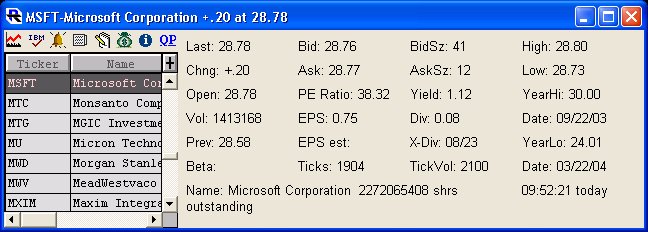
The Quick Quote window is useful for accessing all kinds of information related to a particular instrument. Icon buttons in the window provide access to:
 Open a Chart of the selected instrument.
 Open the Instrument Setup window for the selected instrument.
 Open the Alarms window for the selected instrument.
 View all News items for the selected instrument.
 View all Trading Notes for the selected instrument.
 Show all Open Portfolio Positions for the selected instrument.
 Get Information on the selected instrument.
 Show a list of all QuotePages in which the instrument resides.
The "Get Info" button provides some useful information on each instrument, including which objects (charts, quotepages, etc) are responsible for adding the instrument to the "hot list" (watched list), if indeed it is "hot" (being watched/monitored). You can also hold down the "Ctrl" key while clicking the "Get Info" button to bring up a historical diagnostics window on the instrument. This windows details the historical data that exists in the Investor/RT database for that symbol, including Daily, Weekly, Monthly, and Intraday data.
The Quick Quote object is a rectangular window with an instrument selector positioned at the left. As you use the mouse or keyboard to select an instrument, a detailed array of market data for the instrument appears to the right, including open, high, low, last, change, previous close, 52 week high and low (contract high/low for futures). All market data is updated instantly as trades or quotes arrive on the data feed. Fundamental data such as PE ratio, earnings per share, dividend and yield are shown when those data items are provided by the data service in use. When a quick quote window is closed, Investor/RT saves the object in the database. The name of each saved quick quote object is composed of the ticker symbol, requested exchange and session number of the associated instrument separated by colons. A list of saved quick quote objects is available in the Objects menu for convenient recall.
The Quick Quote object is useful for (1) inspecting a detailed quote on one or more instruments, (2) monitoring the activity of a single instrument as trades occurs, and (3) as a general purpose tool for identifying an instrument for some other purpose. Along the bottom of the Quick Quote window is an array of icon buttons. Each button performs some action on the selected instrument. Actions include: producing a chart, accessing the setup information for the instrument, viewing news items pertaining to the selected instrument, accessing trading notes for the selected instrument, and accessing portfolios which contain positions in the selected instrument. The default action is to request a chart. Pressing enter, return or double-clicking a row in the instrument selector performs the default action. If one or more chart objects are open, the instrument is inserted into the front chart, otherwise a new chart object is opened for the instrument. Thus a quick quote window can serve as an instrument selector for the front chart window.
The Quick Quote object is a window with an instrument selector positioned at the left. As you use the mouse or keyboard to select an instrument, detailed market data for the instrument appears to the right. All market data is updated instantly as trades or quotes arrive on the data feed. Fundamental data such as PE ratio, earnings per share, dividend and yield are shown when those data items are provided by the data service in use.
When a quick quote window is closed, Investor/RT saves the object in the database. The name of each saved quick quote object is simply the ticker symbol, requested exchange and session number of the associated instrument separated by colons. A list of saved quick quote objects is available in the Objects menu.
The Quick Quote object is useful for inspecting a detailed quote on one or more instruments, for monitoring the activity of a single instrument as trades occurs, and as a general purpose tool for identifying an instrument for some other purpose.
Along the bottom of the Quick Quote window is an array of icon buttons. The Chart button produces a chart of the selected instrument. This is the default action when the return or enter key is pressed, or if any instrument is double-clicked. The chart produced, like charting an instrument from a quote page, depended on whether a chart object is open. If a chart is open, the selected instrument is inserted into the chart object "template". The Quick Quote window operates in conjunction with the chart object to effect rapid substitution of instruments into an open chart object. For example, open a quick quote window and type IBM and press return. IBM will appear in the open chart window. Then type another ticker symbol and press return. The chart object will pass the keystrokes along to the quick quote window as you type. The result is a chart of the new instrument.
Other function buttons in the quick quote window are Setup, News, Notes, and Positions. Pressing the Setup button opens a window for viewing or editing the definition of the selected instrument, including the setting of price and volume alarms levels for the instrument.
The Notes button, opens a trading notes object to review, modify or add trading notes for the selected instrument.
The Positions button displays a list of all of the portfolio positions for the selected instrument. Each position is listed as long or short with the quantity. The list window may be used simply for its information content and dismissed by pressing the escape key or closing the window manually. Selecting a position and pressing OK opens the portfolio containing the selection position.
To quickly view a single quote, click the Quick Quote icon or choose Open:> Quick Quote:> ticker. Select the desired instrument using the Instrument Selector. The Quick Quote window updates as quotes come in. The window contains a comprehensive list of market data items. Some items may remain blank if they are not relevant to the selected instrument or if the data is not provided by the data feed service in use. Quick quotes for particular instruments that you wish to appear in the list of quick quotes must be saved explicitly using the File: Save command. Formerly, Investor/RT would save quick quotes automatically when the quick quote window was closed. This often resulted in a build-up of unwanted items in the quick quote menu. To clear unwanted quick quotes from the menu, use the Delete command in the Control: Data Management menu. To add a new quick quote to the menu, open a quick quote window, set the window to the desired instrument and issue the File: Save command. Investor/RT remembers the screen location of each saved quick quote window. When opening a quick quote window using the Open Menu or the list of quick quotes, Investor/RT will create the quick quote window at the screen location and window size it had when it was last saved. Quick quotes can be requested for any instrument using the right-click popup menu in quotes pages, portfolio, or instrument selection lists. In this case, the quick quote window is centered in the Investor/RT task window.
Viewing Charts using the Quick Quote window Typing a symbol into the quick quote window and pressing enter or return (or double-clicking on a symbol in the quick quote window) will bring up a new chart window for the symbol if a chart window is NOT already open. If a chart window is open concurrently with a Quick Quote window, Investor/RT will replace the symbol in the active chart window with the symbol selected in the quick quote window. The active window becomes a "template" for easily charting any instrument with any number of technical indicators. For example, you may have a chart window open with a daily chart, a moving average, and RSI, MACD, and Stochastic indicators displayed in the window. The Quick Quote window can then be used to substitute any symbol you wish with the one in the window. All technical indicators will be recalculated and drawn for the new symbol.
Accessing the Quick Quote Window What QuotePages contain a given Instrument? At any time, you can view which quotepages an specific symbol resides in, by doing the following. Open a Quick Quote window by clicking the Alt-/ keyboard combination (hold down then Alt key while striking the forward slash "/" key). Now type in the symbol you're interested in so that it becomes selected in the list on the left of the Quick Quote window. Now click the "QP" button just above the list and a list of the quotepages in which that symbol resides will appear. You may double-click on any of the quotepages to open them up.
There are other ways to access the Quick Quote window in case you forget the Alt-/ keyboard shortcut. You can click on the "Quick Quote" button in the main toolbar. Also, each quotepage has a "View a Quick Quote for selected row" button (7th from top in right column) which will bring up a Quick Quote on which ever symbol is currently selected (has the cursor). TIP: The quick quote window can be resized with the mouse to form a tall, narrow, symbol selection list. Position the resized quick quote window on the left edge of the screen with the remainder dedicated to a chart object of your choice. Then use the mouse (double-click) or keyboard ("symbol, return") to choose symbols for charting. You may revise the chart window in any fashion you like or replace it with an altogether different chart object. The quick quote window will chart the symbol you select in the active (frontmost) chart window. Note also that the symbol selection list in the quick quote window can be set to display symbols or security names in alphabetical sequence. Thus you can pick symbols by typing the first few characters of the symbol or the first few characters of the security name.