

Important Note: This tutorial was originally developed for scans, before the language to write them was referred to as RTL. However, this tutorial will be equally useful in general as a tutorial on RTL for signals and custom indicators. The one difference with scans, is that they allow the user to supply a quotepage and a periodicity for the scan to run on. These items are not present in the signal and custom indicator windows. But the RTL logic applies equally to all three.
This Tutorial will be helpful in the following areas...
- Creating Scans
- Understanding Scan Logic
- Using Comparative Operators in Scans (>, <, =,etc.)
- Using Arithmetic Operators in Scans (+, *, %, etc.)
- Proper Parenthesizing in Scans
- Qualifying Scan Tokens
- Compound Expressions in Scans
- Setting Data Values with Scans
- Renaming Scan Tokens
- Automated Scanning
For additional information on Scans, also see Scans Feature. Scans were originally developed to scan a list of securities in search of a given signal or pattern. As our scanning language has grown, the functionality of scans has broadened tremendously. Scans can now be used to set data column values, alter the properties of instruments, and much more. Scans have become extremely powerful. This tutorial was written to help users harness this power for themselves.
Let's start by looking at the Scan window and identifying the main components. The scan window can be accessed in three ways. From the main menu, you can choose "File: New: Scan", from the main toolbar, you can click on the "Open Scan" button, or you can choose "Open: Scan" from the main menu to open an existing scan. Below is a scan window containing a MACD Bullish scan.
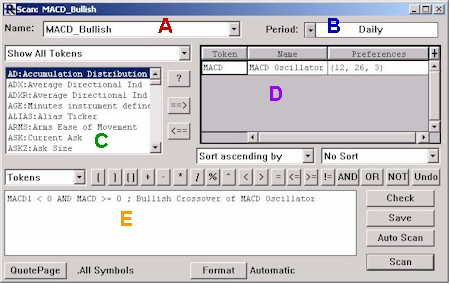
The colored letters are used to identify the main components, which are described in further detail below...
- A - This is a drop down list box containing all the previously saved scans. When you select a scan in this list, the remainder of the window reacts by filling in the scans definition (periodicity, scan expression, quotepage, etc.). The first choice in this list is "New Scan Definition". Choose this option if you would like to create a new scan.
- B - This is a periodicity selection control. Here you choose the timeframe of the data on which your scan will run. In other words, you are choosing the time per bar for the scans input data. For instance, you may choose to run your scan on daily data, 5 minute bars, 1 minute bars, etc.
- C - This is the list of available scan tokens. Each entry in the list shows the scan token, followed by a colon, followed by a short description of the token. The scan token is what is used in forming scan expressions. For a complete list of scan tokens, click here.
- D - This is a list of the tokens that are being used (or are to be used) in the current scan. This is a spreadsheet style control, with columns for Token, Name, and Preferences. As you will see later, some tokens have preferences and some do not. For example, Moving Average (MA) would have preferences like Period and Type, while Closing Price (CL) would have no additional preferences. The Name column is editable. We will discover later why it is useful to be able to rename your tokens once you've added them to this list.
- E - This is the box that contains the actual scan expression (also referred to as scan equation or scan syntax). Ultimately, this expression should result in a TRUE of FALSE value. For instance, the expression in the scan above is "MACD1 < 0 AND MACD >= 0". The scan will run on a list of instruments specified by your choice of quotepages. For each instrument, it will evaluate the expression above. If the MACD of the previous period (or bar) is less than zero while the MACD of the current period is greater than zero (in essence, a bullish MACD crossover), then the expression results in TRUE for that instrument. The result of the scan will be a QuotePage containing all instruments for which the scan expression resulted as TRUE. The QuotePage will show the ticker symbols, along with the values used in determining the scan expression. This will all become more clear as we work through some examples on the following pages.
- Buttons and Lists - There are several buttons and lists along the base of the window. The "QP" List allows you to choose the input QuotePage for the scan, or essentially which list of instruments you would like to run the scan on. The "Format" List allows you to specify a specific quotepage format for the resulting quotepage. The "Bars" List allows you to specify how many bars will be loaded during evaluation of the expression. The most common setting is "Automatic" which instructs Investor/RT to compute the minimal amount of bars needed to compute the desired result. The "Check" button checks the scan for valid syntax. If you hold down the Ctrl key while clicking on the Check button, a window will pop up showing you the order of evaluation of your expression. This will help ensure your expression is being evaluated in the proper order. The "Export" button exports the scan to a text file which can be used to share the scan with other users. The "Setup..." button gives the users various options for what to do if scan criteria are met, as well as a shortcut for quickly creating a schedule that involves the scan. The "Save" button saves your scan. If you haven't already given your scan a name, it will ask you for one. The "Save As" button If you have already given your scan a name and would like to save it under a different name, simply click this button. This is commonly used to "duplicate" an existing scan, or use one as a "template". The "Scan" button executes or runs the scan.
Let's start by looking at a very basic scan....