


This first post will detail how to submit a buy or sell limit (or stop) order by using a chart button (and a mouse click on the chart)
Please note this first is also highlighted in this video
(The second post of this thread will explain how to achieve a similar result through a single mouse click, but without using any chart button)
To submit a buy or sell limit order from a Button indicator, follow these steps. In our example, we'll be trading the ES and submitting limit orders of size 5 at our mouse click price.
Keep in mind that the most popular method for dropping down limit orders would be via the DOM (ChartTradingDOM). But this method outlined below does not require the DOM, and makes it much easier to submit limit orders further away from current prices.
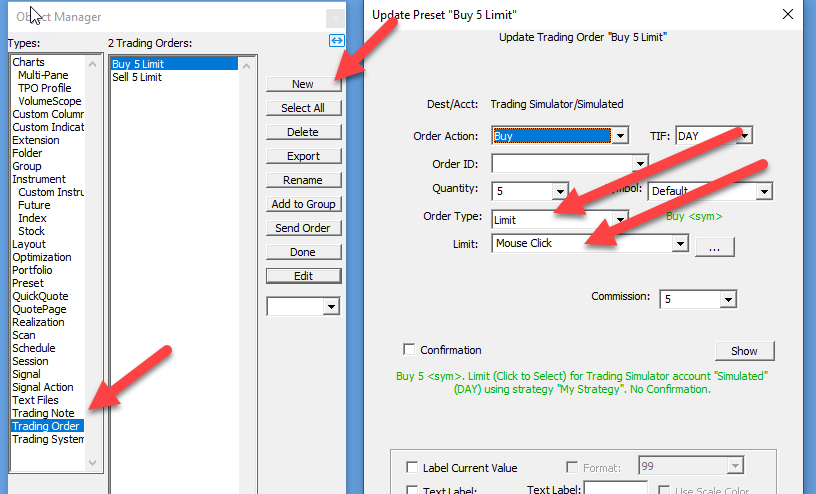
First create a Trading Order. One for Buy 5 Limit and one for Sell 5 Limit as seen below.... The key is to specify a Limit Price of "Mouse Click". You'll find the Mouse Click option just below all the V# Variable choices.
Now add a new Button Indicator to your chart (right-click in chart and Add > Button...)
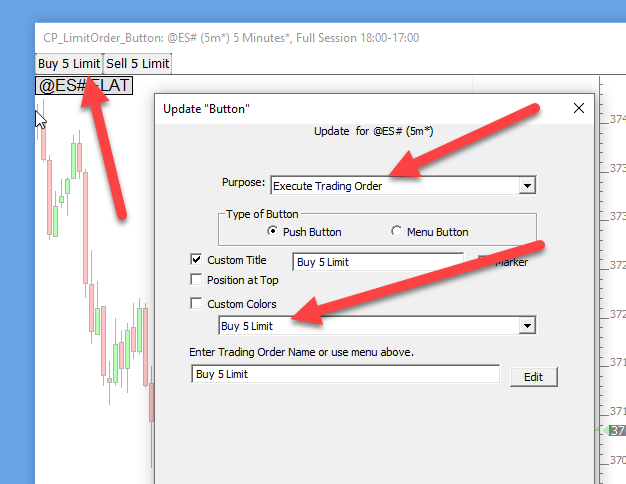
Choose a Purpose of "Execute Trading Order" and choose your Buy 5 Limit order, and give it a custom title of "Buy 5 Limit" (or whatever you wish). Also specify a custom color of maybe light green if you wish.
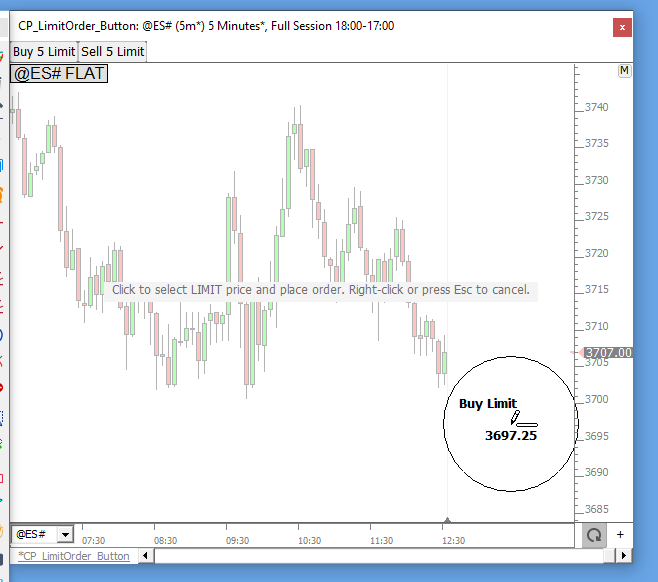
Now, when your button is clicked, it will prompt you to choose the price at which the limit order willl be submitted.
Once the order is submitted, you'll see a line for your limit order...
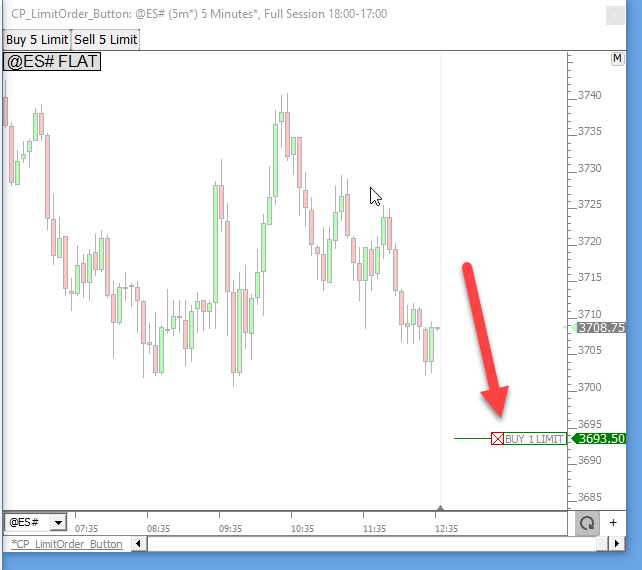
At this point, you can click the X to cancel the order, or drag the line to another price to revise the limit price of the order.
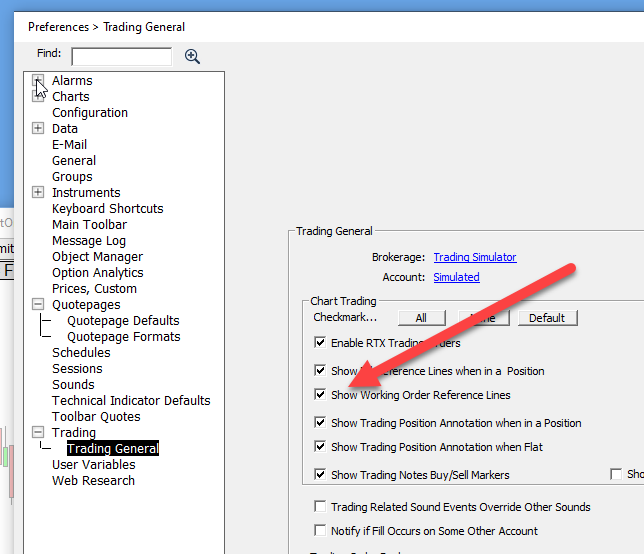
In order to see the lines for working orders, you'll need to ensure the checkbox below is checked in File > Preferences > Trading....
By right-clicking the chart at a specific price level (and selecting one of the Trade Menu options), users can submit buy/sell stop or limit orders at that price to enter the market. This feature does not rely on any Trading Order presets. Therefore, the ChartTradingDOM or ChartMiniTrader RTX must be present in the chart, as this is where the user controls the order quantity and whether to submit the order with an OCO strategy.
Here is an example. With S&P Mini trading around 6973, a right click at 7013 will result in the following choices:
This right click feature requires having a ChartTradingDom or ChartMiniTrader on the chart. Depending on where you click (above or below the current price), the type of available order will adjust accordingly
Notice that the order types also include a Sell MIT, ie Market If Touched order at 7013. This tells the broker to work the order at that price and change it to a market order if a trade occurs at or above that price.
This TradeMenu feature is, by default,only activated when the user is sim trading. Setting the configuration variable EnableTradeMenuLive to true allows a user to enable the chart click trading orders for live trading