

Here are the different ways to perform manual data download operations:
1) From an open chart
To access the Download data option, either Right click anywhere on an empty space of the chart and select one of the options of the "Download Data" menu (see below) OR right-click on the download icon at the bottom right corner of your chart 
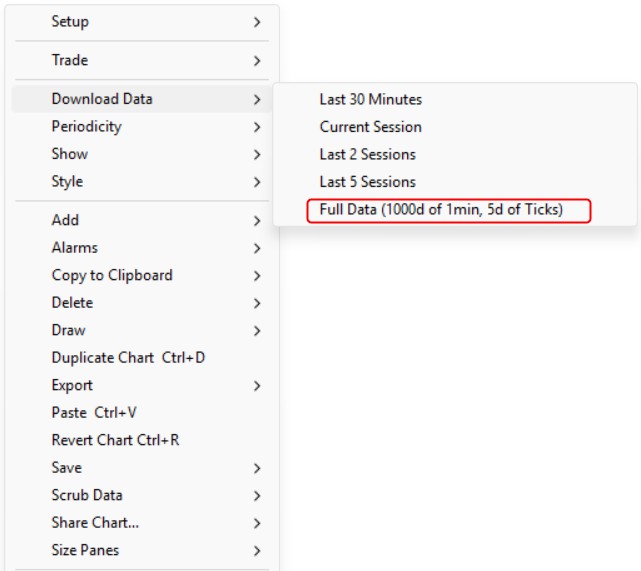
It will provide options to perform data download for some typical lookback period OR a full data download for the main instrument of the chart
Note: if the option is activated in the File > Preferences > Chart > General settings, pressing the space bar also triggers a data download for the current session data for any open charts
2) From a Quotepage
Right click on a ticker and select "Download data". Please be aware that you will perform a full data download.
3) Accessing the "Download data" interface
In addition to downloading directly from an open chart or a Quotepage, you can also download long time periods or history for an entire quote page from the Download Data screen that you can access with one of the following methods
- In the Main Toolbar, press the Download Data icon
- or Use the menu Data > Data Download from the main toolbar
- or Use the Keyboard Shortcut Alt+6 or Alt+D
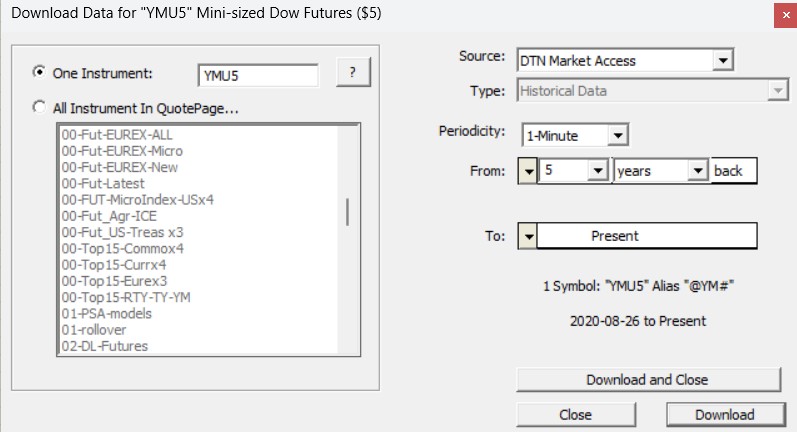
- Download Source and Type: you will generally use DTN MA (or IQFeed) as download source and have "Historical Data" automatically selected for such data source
- Periodicity: Specify here which periodicity of data you would like to download. You will have the choice bewteen Tick, 1-min bar and Daily. (Weekly and Monthly data will be in fact derived from imported Daily Bars).
- From and To: Here, you specify the range of date/times for which you would like to download.
- One Instrument / QuotePage: If you check the "One Instrument" checkbox, then you will need to specify a single symbol for which you would like to download. If this checkbox is unchecked, you will need to select the quotepage on the left on which you would like to download data.
Important: Review this support page for more information on retaining and downloading data
Please also review the DTN MA support page (if you have subscribed to this service) and the Instrument setup support page as both need to be correctly set up for any download operations to proceed correctly