TPO Profile Shortcuts
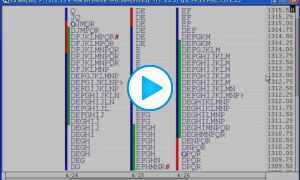
This video demonstrates a number of keyboard shortcuts and popup window shortcuts available in TPO charts.


This video demonstrates a number of keyboard shortcuts and popup window shortcuts available in TPO charts.
(Also See: Database Backup And Recovery) (Also See: Tip: Keeping Your Database Size Minimal)
Also See: Q&A: Scanning Multiple Periodicities (see bottom of page)
The symbol limit imposed by any realtime data service refers to the number of symbols that can be "watched" real-time at any one point in time. You can have a much larger universe of stocks defined to Investor/RT but you must take care not to activate more than your symbol limit at any one time. A few rules:
Today's tip will cover the use of V# variables in QuotePages, Scans, Custom Indicators, and Trading Signals. Additional Information on Setting V# Variables can also be found in the Scan Tutorial.
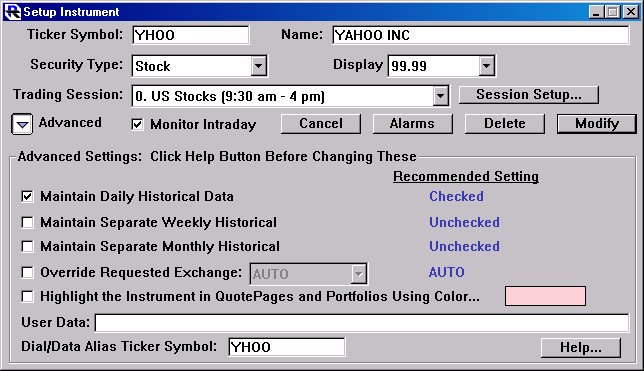
Today's tip will show you how to create a quotepage format that will allow you to quickly check the setup properties for all instruments in your quotepage by adding them as quotepage columns. The Setup Properties are the properties that can be found in the Setup Instruments window (Setup:Instruments) as seen below. It will then show you how to edit those properties directly from the quotepage. Then it will show you how to do a bulk edit of the following properties using a scan:
This tip will cover the use of Scans to set Alarms and Alarm levels. See Alarms For additional background information on Scans, click here
There are three different alarms which can be set. The High Alarm, the Low Alarm, and the Volume Alarm. For each alarm, there are two numbers which can be set....the alarm level, and the alarm step value.
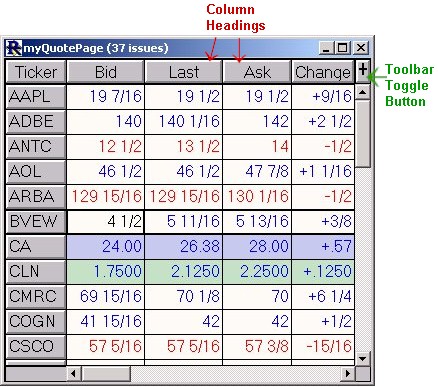
This tip will cover QuotePages. QuotePages are spreadsheets in Investor/RT designed to display information for a list of securities (instruments). Each row represents an instrument or ticker symbol, and each column represents a piece of data associated with the instrument. QuotePages are powerful tools for displaying large amounts of dynamic data in one table. QuotePages are also used throughout Investor/RT to provide a way of grouping instruments. For instance, QuotePages are used as inputs for Scan, in order to communicate to the scan which list of instruments it should operate on.

You can learn a great deal about Investor/RT by simply opening up and inspecting each of the Preferences windows. Click on the Preferences icon  on the main toolbar to access any of the 31 preference windows, each one giving you ways to customize the behavior of the software to suit your needs. Remember to press F1 if you have a question about any preference window you are viewing.
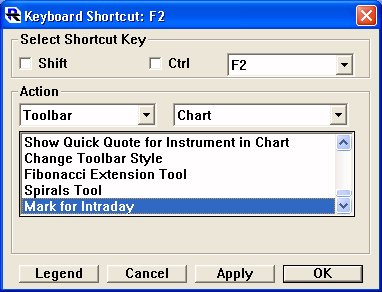
When the text "NOT MARKED INTRADAY" is printed in the title of an intraday chart, it means that the symbol charted is not marked for intraday monitoring.
When a symbol is marked for intraday monitoring, Investor/RT will ALWAYS monitor that symbol tick by tick, and retain the collected data (along with any other downloaded intraday data) as you are connected to your main source of live data (IQ Feed, Rithmic account, etc).