Message Log
Investor/RT keeps an internal log (a text file) of all ongoing activity.
How can i access the message log ?
You may use one of the 3 following ways:


Investor/RT keeps an internal log (a text file) of all ongoing activity.
You may use one of the 3 following ways:
| General Program Keyboard Shortcuts | |
| Keyboard Shortcut | Result |
| Alt + O Key | Opens the Object Manager |
| Alt + P Key | |
| Shift + Alt + P Key | Takes Picture of Front Window |
| Alt + C Key | Create New Chart (Chart Setup Wizard) |
| Alt + R Key | Opens the RTL Editor Window |
| Alt + G Key | Start Data |
| Alt + K Key | Stop Data |
| Alt + N Key | Open Window Manager |
| Alt + 6 Key | Opens a Data Download Window |
| Alt + 4 Key | Opens the Data Status Window |
| Alt + 5 Key | Opens the System Status Window |
| Alt + V Key | Verify Database |
| Alt + B Key | Backup Database |
| Alt + U Key | Opens the Database Wizard |
| Ctrl + E Key | Opens Export Data Window |
| Alt + 7 Key | Opens the Import Data Window |
| Alt + 9 Key | Opens the View/Edit Data Window |
| Alt + 8 Key | Opens the Playback Window |
| Alt + A Key | Opens an Instrument Setup Window |
| Shift + Alt + A Key | Opens Alarms Window |
| Alt + Y Key | Opens a list of Preferences |
| Alt + ] Key | Next Layout |
| Alt + [ Key | Prior Layout |
| Alt + M Key | Open Message Log |
| Alt + L Key | Show/Hide Layout Toolbar |
| Alt + T Key | Show/Hide Active Toolbars |
By design Investor/RT does not have minimize, maximize, restore buttons on the title bar, only the close button. Multipane charts typically have Minimize, Maximize and restore button available at the top right section of the button pane (see more details below). For other windows type, right-clicking in the title bar usually offers a menu of choices for Minimize, Maximize and Restore actions (with the Alt - keyboard combination also minimizing any selected window). All windows, charts, quote pages, preferences windows, object manager, etc. are floating windows.
The Object Manager is an essential tool in Investor/RT. Understanding its role is important for new users.. Please take the time to review this article thoroughly and familiarize yourself with the Object Manager as this feature is critical to your success with Investor/RT. The Object Manger serves as a "central hub" in Investor/RT to mainipulate (Open, Edit, Delete, etc.) most of the elements within the program. It serves as a "Jumping off" or starting point to reach amost any Object including the following:
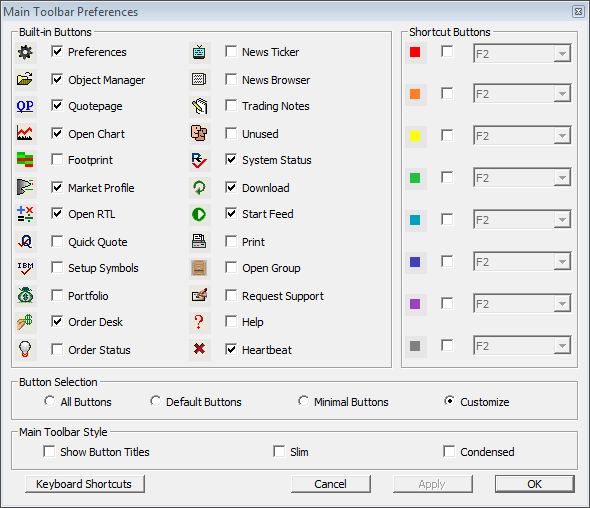
To customize the icons on the Main Toolbar, go to File: Preferences: Main Toolbar. Use this window to choose which buttons you would like to appear in your main toolbar:
This first video introduces the key features and concept of layout within Investor/RT
The default style and position of any "Object" toolbar (i.e the Chart Toolbar, the QuotePage Tool bar) is setup in the Preference > General Menu. The possible objet toolbar styles are : Large Vertical / Small Vertical / Large Horizontal / Small Horizontal with 2 possible themes (GrayScale or Colored) while the Default Position are either Floating toolbars / Fixed Position or Pin to the Right/Left, pin to the Top/Bottom