While "Signal Action Setup" is listed, for convenience purposes, on the Technical Indicators library webpage, it is not a technical indicator, but a fully independent Investor/RT Object designed to help with the automation of multiple tasks under a live datafeed environment (or in the Investor/RT market playback mode)
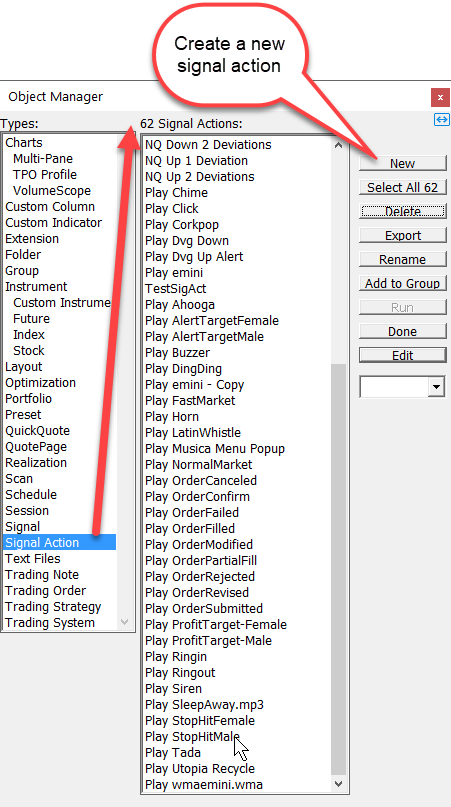
As with any other Investor/RT objects, a Signal Action can be created or edited in the Object Manager window, and a particular configuration of settings (i.e., actions) can be saved under a specific Preset name.
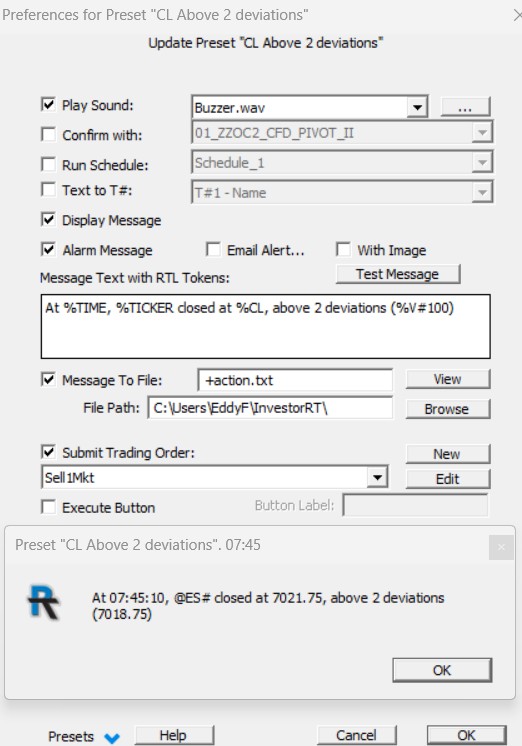
It was originally designed to be associated with the Signal Marker indicator. When an RTL signal turns true, the associated Signal Action can perform one or more tasks:
- Play a specific sound name
- Run a named schedule
- Display a message in a message box.
- Record a message to a text file
- Treat the message as an alert - alerts can be sent to a designated email address and can optionally include an image of the chart in which the signal action execution was triggered.
- Submit a named Trading Order - a trading order can optionally carry an automated order management Trading Strategy.
- Execute a button inside the chart in which the signal action execution was triggered.
It is also possible to restrict the triggering of signal actions under certain circumstances by including a "Confirm with" signal rule with the desired syntax (this filter could reflect a specific market / indicator condition, a certain period of the day, actual trading positions based on the TR_POS token, etc)
Today, a signal action can be directly associated with multiple other technical indicators, i.e., Reference and Trend Lines, Zigzag, Multiple Price Highlighter, PriceVolumePattern(RTX), or Zones (RTX), each with its own specific trigger conditions. An "Execute Signal Action" task can also be included as the purpose of a Chart button (and, therefore, as a component of a Schedule), as a keyboard shortcut, or within the settings of a Quotepage Custom Column.
This is why the "Signal Action" is the most important I/RT component and solution provider when it comes to automating any tasks, from the most simple alert (play a sound when a signal turns true) to the most complex one, i.e. power live trading order executions of semi or fully automated trading system, thanks to its integration within the Trading Rule and Trading System Indicators, as in the example below

Without going into details, this signal action is linked to a trading system rule and will trigger the placement of a BUY STOP order to (possibly) enter a new position at a predetermined price. The message text box includes both V# and T# variables, determined by the Trading system's rules, as well as information about the actual trade position returned by live Trading order tokens. This message text is appended to a log file to gather all potential Entry orders of that type.
Presentation
List of Technical Indicators and I/RT Objects that can trigger a Signal Action
The Signal Marker Indicator
As mentionned, Signal Action was originally developed to be associated with the Signal Marker indicator, which includes, in its preference window, a very critical setting "Signal Completed Bar only"
This option determines when the signal action can be triggered: at any time during the bar, whenever an intermediate signal formula calculation evaluates to true, or at the end of the bar (assuming the end-of-bar calculation evaluates to true). This critical decision is always deeply linked to the type of formula syntax used inside the RTL signal, ie
-
With a formula such as CLOSE < MA, the "Signal completed bars only" box is typically checked as the user expects to be alerted only once, when the formula definitely returns a true Signal. This can only be confirmed at the completion of the bar, when both the final values of the MA and CL tokens are known
-
With, a formula such as HI > SESST_DayHI.1, this box won't be check. Indeed, the user wants to be alerted as soon as this breakout occurs. As the SESST_DayHI.1 value is fixed during the whole duration of the bar, and as the HI value of the bar can only go up, as soon as it triggers once, there is no risk of getting a false signal at the completion of the bar.
Reference Line and TrendLine tools
In these cases, when the Reference Line or Trend Line indicator senses that the price has touched or broken through the corresponding line, the Signal action is triggered. The Reference Line indicator includes a "reset" setting that can be triggered by a timer or a "next bar" conditions.
Zigzag Indicator
For user convenience, this indicator includes predefined "alert when" rules in its settings (for example, a minimum zigzag leg amplitude or a given delta magnitude) that may trigger a specific Signal Action.
Note: If a user wishes to trigger a Signal Action based on more complex zigzag-based conditions, the solution is to create a dedicated RTL Signal formula (with the adhoc ZZO tokens) and add the corresponding Signal Marker / Signal Action combination on that chart.
Multiple Price Highlighter
MPH can trigger a signal action when a specific pattern is detected. Its settings also include a "Signal completed bars" checkbox, which forces the computation to be based upon completed bar data only, and also additional filter rules (a fixed or minimum number of prices being highlighted within the bar, a fixed or minimum number of consecutive prices being highlighted)
PriceVolumePattern (RTX)
PVP (RTX) can trigger a signal action when a specific pattern is detected. Its settings also include a "Signal completed bars" checkbox, which forces the computation to use only completed bar data.
Divergence (RTX)
A signal action can be triggered when a divergence signal is detected when using one of the High to High or Low to Low calculation methods.
Zones (RTX)
This indicator includes the ability to trigger a signal action when a new zone forms.
Chart Button / Keyboard shortcut
The Button indicator includes as purpose "Execute A Signal Action". This way, any signal action can be triggered either manually by the user with a simple mouse click, or indirectly by any other I/RT object that includes an "execute chart button" action in its event sequence.
If you prefer to use your keyboard (rather than a mouse click) to trigger a signal action, in the Files > Preferences> keyboard shortcuts menu, any function key can be associated with the Execute > Signal action
Schedule
A "signal action" can be executed in a schedule by selecting the task "execute a chart button", with the selected button preset set to "Execute a signal action" (see above). As the chart button task of a schedule is linked to a specific chart, this intermediate step guarantees that the Signal Action is associated with the correct instrument.
Custom Column
Thanks to the custom column Action columns feature, a single signal action preset can be applied to a full list of Symbols, and not to a single symbol (as in the case of a chart environment)
Trading System Indicator
When used in the context of the Trading System indicator, the Trading System builder interface window includes 2 checkboxes (that can be set up for each trading rule)
-
The "Signal Action" which allows linking to a given trading rule a specific set of actions, i.e., typically the execution of one (or more) pre-defined trading orders
-
The "Intra-bar" checkbox: when checked, the corresponding trading rules, under a live data feed, are being evaluated during the completion of the bar, not only when the bar is completed. This checkbox is similar to the "Signal completed bars only" of the Signal Marker indicator