

Trading Order Setup

While "Trading Order Setup" is listed, for convenience purposes, on the Technical Indicators library webpage, it is not a technical indicator. A Trading Order is a fully independent Investor/RT Object that specifies all properties of a trading order to be executed under a live datafeed environment (or under the Investor/RT market playback mode), such as :

  • the account destination
  • the order action (buy/sell, revise, cancel, etc.)
  • the order type (market, limit, etc)
  • the order TIF (DAY, GTC, etc),
  • the order quantity and symbol

Please note that the same Trading Order template is used in both simulation mode and for every live order execution routing service (CQG / Rithmic / Interactive Brokers), even if, for some routing services (or in simulation mode), some features are adjusted or not supported. For example, the OCO "trading strategy" (i.e., server-side OCO orders management) is not supported when using Interactive Brokers.

As for any other Investor/RT objects, a "Trading Order" can be created or edited by accessing the Object Manager window, and a particular configuration/set of settings can be saved under a specific Preset name.

Presentation
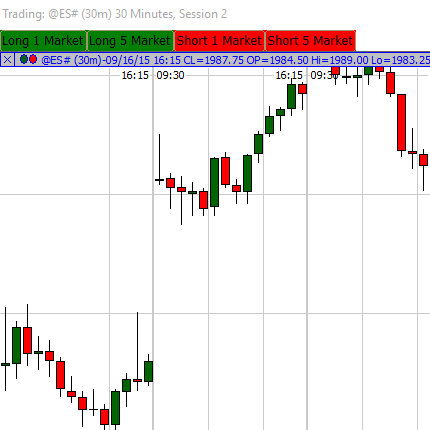
First, it is important to note that a Trading Order preset is not needed when executing a manual order through the ChartingTradingDOM or ChartMiniTrader RTX. 

There are 3 main ways to execute (manually or automatically) Trading Order presets

1) The Chart Button indicator

Among the multiple purposes offered by the button indicator, two are directly related to order executions:

  • Execute a "Trading order"

  • Execute a "Trading order" group

This is the most frequently used method by Investor/RT subscribers to manually place trading orders, both market orders and limit orders, thanks to the very straightforward Trading from the chart  "Mouse click" that allows the user to click the chart to define the corresponding limit price.

Similarly, assuming the trade quantity was introduced as a V# variable in the Trading order setup, this quantity can also be easily controlled through a separate push or menu chart button (setting the underlying quantity V# variable to pre-defined values)

2) The "Submit Trading Order" feature of a Signal Action

A "Signal Action" is another key Investor/RT Object whose settings can be managed through the generic Object Manager window. A signal action preset includes a set of predefined actions, such as playing a sound, displaying a custom text alert message, or submitting automatically a specific Trading Order preset.

The most common way to trigger a Trading Order execution (through a Signal Action) is to use the Signal Marker indicator.

Originally developed for the Signal Marker indicator, the Signal Action can submit (in a live data feed environment) any existing Trading order setup to the brokerage execution services when the current bar returns a true signal value.

Signal Action can also be triggered from other indicators, i.e., a specific Trading Order setup could be, for example, automatically submitted when

  • the current price action breaks a predefined price level (Reference line or Trendline indicator)

  • a price wave reaches a certain amplitude or a delta magnitude threehold (Zigzag indicator)

  • a specific orderflow pattern is detected (with the MPH or PVP indicators)

Please note that Signal Actions are also integrated into other Investor/RT Objects and features, so Trading Order setups can be submitted via a schedule, a keyboard shortcut, or even from custom columns added to QuotePage.

3) The Trading Rules and Trading System Indicators

Two indicators are also hosting "Trading Order" presets to manage semi or fully automated trading systems:

  • The Trading Rules Indicator: when a specific trading signal turns true, the user can restrict the execution of a specific trading order, upon specific conditions of its current live trading status  (long/short or flat)  

  • The Trading System Indicator focuses on the live deployment of complete trading strategies that may have been previously backtested and optimised with the corresponding features of I/RT. In that case, using the system builder interface, Signal actions are directly attached to the same trading rules as the ones used for the backtest runs...

Please refer to the global overview of the Trading system tools for a comprehensive presentation of the trading strategies and backtesting capabilities in Investor/RT.

Dest/Acct

The Destination for the trade is the Rithmic/CQG/IBKR Brokerage account as set up under the Data> Setup "datafeed menu (or the Investor/RT built-in Trading Simulator). This account can be displayed in an annotation indicator with the %ACCOUNT RTL token. In certain cases (multiple sub-accounts attached to the same main account login and password), it is possible to switch accounts with a Chart Button action

Order Action

Buy, Sell, Revise Order, Cancel Order, Cancel All Orders, Flatten Position, Flatten All (= Flatten and Cancel All orders), Get Order Status & Get Market Position (see comment below), Suspend Order, Activate Order

TIF (Time In Force)

DAY, GTC, IOC, FOK, FAK, GTD, GTT, ATO, ATC (not every TIF may be available/displayed depending on the routing services & instrument traded)

Order ID

This input is only compulsory for the 4 following order types: Revise Order / Cancel order / Suspend Order / Activate Order. It is recommended to use either a Live Trading order ID token (such as %TR_BUY_LMT_OID) directly if there is no possible confusion among several trading orders of the same type, or to use a T#1 variable (that would have been used to store the Order ID with a SET statement, just after the confirmation of the order execution). Refer to the Live Trading Order RTL tokens support page for more information.

Quantity

Number of Futures Contracts or Shares of Stock to be bought or sold. Does accept V# variables as Input

Order Type

Choose one of the Order Types (Market, Market if Touched, Limit, Stop, Stop Limit). Additional input boxes for possible LIMIT and STOP prices will appear based on the selected order type. It includes the ability to select a V# variable or the "Mouse Click" interactive input (as highlighted in this video)

Symbol

Choose the Symbol that this Trading Order will be executed for. Choose "Default" to use the primary symbol in the chart where the trading order originates. This box also accepts T# variables as input.

Reminder: in case you are not using the "default" option and want to introduce a dedicated symbol name, there are 2 possible cases

  • I/RT is set up with a brokerage feed as the main live data sources (i.e., Rithmic, CQG or IBKR), then the symbol must match the symbology of this brokerage feed, i.e., the code for the S&P Emini futures Mar 2026 contract will be ESH6 for Rithmic or EPH26 for CQG

  • I/RT is set up with IQfeed as the main live data feed source, together with a specific brokerage destination for order routing (let's say Rithmic), then use the IQ feed symbol (not the Rithmic one). An order for @ES# will be automatically executed according to the Brokerage Alias symbol you have introduced in the instrument setup

Commission

Enter the Commission that you typically get charged for this particular Trading Order. Optional input that Investor/RT may use to provide more detailed trading reports. (No commission information can be retrieved from the different routing services.)

Strategy

Select a pre-defined OCO Trading strategy name or create a new one by clicking on the 3 dots. A T# variable can be used as input as long as the Text content corresponds to an existing strategy name. More information on the Trading Strategy webpage (to see how to adjust the trading strategy OCO leg quantity with the overall QTY introduced on the Trading order setup window)

Confirmation

Check this box to display a pop-up window requesting confirmation before sending the order for execution.

Remarks

For Rithmic Trader Pro & Interactive Broker, Chart buttons setup with the Order Action "Get Order Status" and "Get Market Position" are designed to resynchronize the current position (and resting working order list) in case discrepancies would appear between the position and list of working orders as reported by I/RT and the information displayed on the native execution platform. Review this forum post for more information.

Please note that chart buttons (set up for Trading order execution) are often positioned vertically, in a SideBar, just next to the ChartTrading Dom (or ChartMiniTrader), as both methods can be used to enter trading orders.

No examples. Let us know if you'd like to see one added.
Pop-up Video Description View
Trading From Charts with Button Indicator

This video demonstrates how to use the Button Indicator to invoke limit orders with variable...

 Watch