Signal Markers

Together with the Custom Indicator, an RTL Signal Formula is one of the key building blocks of Investor/RT

A Signal is an RTL formula (such as CLOSE > MA) testing the value of each bar of data for a true/false condition. When it comes to knowing more about writing simple RTL Signal formula, please refer to the  RTL 101 section of the knowledge base, which offers:

  • a global presentation of the RTL language, of its main syntax rules, which involve different components (historical or primitive tokens, functions and variables)

  • a global overview of the use of RTL signal formula throughout the software (as dynamic input for other technical indicators, for trading systems developments, etc)

This page focuses on the Signal Marker, i.e., the native Technical Indicator of Investor/RT, which was developed to display the historical true/false values for a given RTL Signal formula on a chart.

In addition to the Signal marker itself, there are multiple indicators designed solely to visualize the historical true/false values of an RTL signal formula. Instead of displaying a marker, you can indeed paint candles, the chart background, color histograms or dotted lines, etc. These indicators include the Color Marker indicator, Paint Bar indicator, PaintCandles RTX, PaintIndicator RTX and more.

Presentation

The Signal Marker indicator tests a user-specified RTL signal formula to determine its true/false status using the chart's periodic data. This indicator has 2 main purposes:

1 ) display a specific marker on all of the bars for which the signal is true.

The preference tab reviews all the settings associated with this marker selection: the marker shape, its size and colors, its position (above/below the bar etc), the text label display, and a few more settings.

2) Trigger a "Signal Action" under a real-time datafeed environment, i.e. a sequence of user-defined actions, as detailed on the dedicated "Signal Action setup" webpage

What is important to highlight is that a Signal Action is a generic Investor/RT Object that is fully independent of the Signal marker indicator and can be created or edited in the Object Manager Window. It offers the ability to trigger a wide range of actions, from very basic ones (such as playing a sound or displaying an alert message) to much more complex ones, such as triggering a trade order, maintaining an event log, or any other I/RT tasks that could be programmed through a chart button, a schedule or keyboard shortcuts.

In the chart below, 2 signal markers (green and pink "laser" arrows) are highlighting pivot high and low bars (for a given zigzag line setup), while showing, as label display, the value of the custom indicator (displayed in the pane below) which returns the wave count based on a HH / LL definition of a trend (DOW theory).

Important concept: "Intra-bar" Signal versus "End of bar" Signal

When charting daily or intra-day, the signal is re-evaluated according to the "Recalculate Every xx" settings (which may be as fast as once every incoming tick). However, this setting is not the one determining how a given Signal formula should be considered an Intra-bar or End of bar signal.

The Signal marker includes a very important checkbox titled "Signal completed bars only", which will decide when the signal action can be triggered, i.e., ie at any time during the bar, whenever an intermediate calculation of the signal returns true, or just at the completion of the bar (assuming that this end-of-bar calculation returns a true value)

This critical decision is always deeply linked to the type of formula syntax used inside the RTL signal, ie.:

  • With a formula such as CLOSE < MA, the "Signal completed bars only"  box is typically checked as the user expects to be alerted only once, when the formula definitely returns a true Signal. This can only be confirmed at the completion of the bar, when both the final values of the MA and CL tokens are known

  • With a formula detecting if a new session High is being made during the current bar (with a syntax such as HI > SESST_DayHI.1), this box is usually not checked as the user typically wants to be alerted as soon as a new daily high is formed. (if unchecked, the alert would trigger only when the bar is completed)

As the SESST_DayHI.1 value (ie the Highest High of any bar reached up to the previous bar) is fixed during the whole duration of the ongoing bar, and as the HI value of the bar can only go up, there is zero risk of getting a "false" signal. When turning true (i.e., whenever a new trade breaks the current daily High), that signal can't turn false again during the remaining duration of the bar.

  • Signal - The scan or signal marker that is used to determine the markers. An alternative is to select a privately user developed RTX extension that returns a true/false RTL signal.

  • Edit - Opens up the selected Signal so that the syntax can be adjusted.

  • Evaluate/Display Markers for Last ___ Bars - Here, you can choose how many bars you would like your marker. For instance, if you specify 100, it will draw markers on your last 100 (most recent) bars. (See more information at the end of this page)

  • Marker - Select here the marker shape (20 + options), color, size (in pixels), border and location (above high / below low / top of chart/bottom of chart). See below for more information about creating your own marker shape, and the newest rotate, flip and dynamic adjustment options (Spin / Fade / Pulse).

  • Offset: ___ Pixels -Vertical offset from top of chart, bottom of chart, top of bar, bottom of bar, depending on which is specified in the "Marker" settings.

  • Shift Markers Left/Right ____ Bars -Shifts the markers left or right X bars from where they actually signal.

  • Show Text - User-supplied text that will appear along with each marker (as a "label"). This may include any dynamic message with %RTL tokens

  • Show Value - Option to label each marker with one of the following options

    • Either the Close, High, Low, or Open of the bar it marks.

    • A custom indicator value (custom indicator must be present on the chart, possibly under an invisible style, on the chart)

    • A Date/time information with several formats available depending on the chart periodicity (DateTime:hh:mm: ss, Date:19-Feb, Calendar: Mo, i.e., day of week)

  • Additional Text options: Font size, boxed text & vertically displayed text

  • "Signal Completed Bars Only"

When this box is checked, the signal marker will draw markers only on completed bars (the last partial bar will never be marked), and the signal action associated with the signal markers will be performed only when the signal is true for the last completed bar.

When checked, the signal action will be performed as soon as the signal can be evaluated as true for the partial bar. Furthermore, the signal action will be performed at most once per bar. Once the signal has triggered for the partial bar once, it may become false, then true again, before the bar completes, but the signal action will not be repeated until the Next bar begins forming.

  • Signal Action selection menu

The Signal Marker setup shows a list of existing signal action names. The "New" and "Edit" buttons enable creating new signal actions or viewing/editing existing ones (which can also be accessed through the Object Manager Window).

A Signal Action is a specification of one or more actions that are to be performed when a signal is triggered. The multiple options of the Signal Action setup windows are discussed here.


Additional information about Markers

Markers are used primarily by the Signal Marker Indicator, but also in a variety of other indicators, including Chart Buttons, Fractals, Annotations, Darvas Box, Trading Notes and Trading System Indicator, and also in the Clear RTX and Chande Momentum Oscillator RTX indicators.

  1. Creating custom Markers

Marker Images are small images used to mark up charts, indicating when a user-specified trading signal is triggered.

Investor/RT has approximately a dozen such markers stored within the markers folder directory on the hard drive. Examples include diamond, ball, dot, box, up arrow, down arrow, etc. The user can add new marker images or edit the existing ones using an appropriate application. The image files are 16 by 16-bit bitmaps stored in Windows/OS2 BMP format. These files can be created or edited by any advanced Paint utilities.

After adding new images to the markers folder, Investor/RT must be restarted for the new markers to be recognized in each Technical Indicator that uses them (Signal marker, Annotations, etc).

  1. New marker options introduced in Investor/RT 13

Several new marker shapes are now available, including Fan, Checkmark, Checkerboard, Bug, Star Burst, Falcon, Hammer, and many more.

All markers now have an adjustment with options: Rotate 90, Rotate 180, Rotate 270, Flip Vertical, Flip Horizontal, and dynamic adjustments: Spin, Fade, and Pulse.

  • the Spin option continually rotates the shape,

  • the Fade option fades the color of the shape in and out of the background color,

  • The Pulse option dynamically adjusts the size of the shape.

In addition, the marker rendering has been improved to present the marker more cleanly, without drawing a square background behind it.

Also, a new border option (in the Marker selector window) is available to set the color of a 1-pixel border around the marker/shape. These options provide a great deal of flexibility in presenting not only the new marker shapes but also the many that pre-existed.


Additional information about the Compute/Display Last X Values setting

This input box can manage two types of entries.

  1. Either a single input, which is either ALL, or X

By default, the setting is set to ALL, which is the appropriate setting for 95%+ of common CI formulas. On some occasions, a user might only want to compute and display the last X Bars and may introduce 1, 5 or 10 as an input for both compute/display settings

  1. Either a dual input, such as ALL: ALL (or any X:Y combination of values)

This dual-input feature allows the user to specify separate lookback periods for both the evaluation and display tasks.

As discussed in this forum post, an ALL:ALL or ALL:100 setting is also required to update certain RTL formulas, such as those with tokens related to the Fractals or ZigZag Oscillator indicators, or those that use the FREF RTL functions ("forward-looking" formula) or the Signal Statistics tokens that are part of the look-ahead category. Indeed, the computation of past bars (i.e., RTL tokens value) may be modified based on the value of future bars, as illustrated in this Zigzag Indicator Oscillator video.

No examples. Let us know if you'd like to see one added.
Pop-up Video Description View
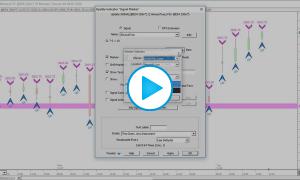
Signal Markers Labels

This video is going to take a close look at signal markers, and specifically look at some new...

 Watch
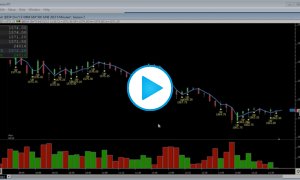
Markers in Investor/RT 13.1

This video highlights a number of enhancements that were made to markers in Investor/RT 13.1....

 Watch
Manipulating Custom Indicators and Signal Markers

This video discuss how to manipulate custom indicators and signal markers within charts...

 Watch
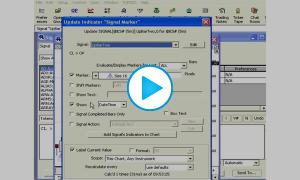
RTL Lesson 5 - Signal Marker Preferences: Display & Actions

Experience Level - Novice This video details...

 Watch