|

MASTER INDEX
SEARCH
CHARTS
MAIN TOOLBAR
SETTING PREFERENCES
TECHNICAL
INDICATORS
WHAT'S NEW
ALARMS
BACKTESTING
CONFIRMING TRADES
CUSTOM
COLUMNS
CUSTOM
INDICATORS
CUSTOM
INSTRUMENTS
CUSTOM PRICES
DATA FEEDS
DATABASE
DOWNLOADING
DATA
FEED STATUS
HEARTBEAT
HELP
MULTI-LINKING
MULTI-PERIODICITY
INSTRUMENT SETUP
NASDAQ LEVEL II
NEWS TICKER
NEWS BROWSER
OPTIMIZATION
OPTIONS
ANALYTICS
PLACING TRADES
PORTFOLIOS
PRESETS
PRINTING
QUICK
QUOTES
QUOTE PAGES
REALIZATION
RTL LANGUAGE
SCANS
SCHEDULES
SCOPE
SYSTEM STATUS
TICKER
TAPE
TIME AND SALES
TRADING NOTES
USER VARIABLES
VERTICAL SCALE
MASTER INDEX
DICTIONARY
FEEDBACK
Indicator-A-Day
24.
Volume Breakdown
23. PriceTime
Cycles
22. Trend
Intensity Index
21. Bollinger
Bands
20. Balance
of Power
19. RSI
18. Fib
Retracements
17. Parabolic
SAR
16. CCI
15. ADXR
14. ADX
13. DI+
/ DI-
12. True
Range
11. Stochastics
10. Statistics
9. TLB
Oscillator
8.
Weighted
MA
7.
Exponential
MA
6. Moving
Average
5.
Regression
Review
4.
Reg
Acceleration
3.
Regression
Slope
2.
Regression
Bands
1.
Linear Regression
|
Investor/RT Tour
( more on Technical
Indicators )
Fibonacci Extensions
| The Formula
. . . |
. . .more
on Formulas |
| See Description Below
|
| |
| The
Presentation . . . |
. . . more
on Charts |
|

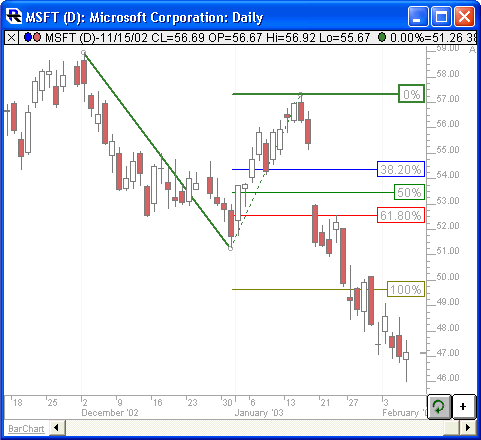
Above is a Daily Chart of an Microsoft Corporation
(MSFT). The diagonal red line represents a trendline between two extreme points, based on the date-time ranges specified below. The horizontal trendlines represent the Fibonacci Levels selected in the preferences below. |
|
|
| The
Preferences . . . |
. . . more
on Preferences |
|

|
-
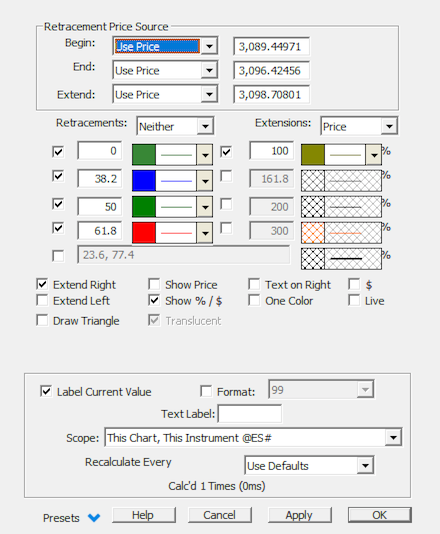
Retracement Price
Source - Specifies what method will be used for
identifying the beginning, ending, and extension points of the
extension trendline(s).
-
Begin/End/Extend - The
preferences labeled "Begin" or "End" have
different meanings based on which Price Source checkbox is
selected. If "Use Bars" is selected,
then Begin or End will represent the beginning or ending dates
that will be used as endpoints to the trendline. The
extreme price of the bar will be used as the endpoint price. If
"Use Price" is selected, then Begin or End
will represent the beginning or ending prices of the
trendline. If "Use Variables" is selected, then
Begin and End will be a choice of variable prices, including
High, Low, and the V# custom variables. Begin and End are
not used for Automatic Retracements.
-
Use Bar
- This option allows the user to specify the date/times of
the bars that will be used for the extension trendline(s).
The prices will be determined based on the high of the higher
bar, and the low of the lower bar.
-
Use Price
- This option allows the user to use specific prices as
trendline endpoints, independent of the highs and lows of the
actual bar data.
-
Use Variable
- This option allows the user to link the trendline
endpoints to different variables, including the High and Low of
the day, or any of the custom V# variables. By giving the
user access to the V# custom variables, the user may set the
endpoints to essentially any data accessible using RTL.
-
Retracement - Retracement
options include Price, Time, Both, and Neither. Price
Retracement lines are horizontal lines retracing from then
ending price of the trendline back towards the beginning price
of the trendline. Time retracement lines are vertical
lines retracing from the ending date/time back towards the
beginning date/time of the trendline. A 70% Price
Retracement line drawn on a fib trendline going from $60 to $70
will be drawn as a horizontal line at $63.
-
Expansions - Expansion
options include Price, Time, Both, and Neither. Price
Expansion lines are vertical lines projecting past the ending
price. Time expansion lines are vertical lines projecting
forward in time past the ending date/time. A 50% Time
Expansion drawn on a fib trendline that spans 50 bars, will be
drawn as a vertical line 25 bars (50% of 50) past the endpoint
of the trendline.
-
- Dictates whether that retracement level will be
draw in the chart. The last and longest entry box allows
the user to enter comma or space delimited numbers for
additional retracement levels.
-
% Levels - Fib
percent levels at which to draw the horizontal lines.
These levels can also be $ levels if the "$" checkbox
is checked. See "$ (Use Absolute Dollar
Retracement)" below.
-
Color - Color
and style of the retracement lines in the chart. Each level can have
it's own color and width. If the "One Color"
checkbox is checked, then all but one color control will be
hidden, and that color will be used for all lines.
-
Extend Right
- Extend
the retracement lines to the right edge of the chart.
-
Extend Left - Extend
the retracement lines to the left edge of the chart.
-
Show %/$ - Show
the % or $ retracement or expansion levels of each line.
-
Show Price -
Show the price of each line.
-
Text on Right
- Place the text labels on the right side of the chart.
-
One Color -
Allow the user to specify only one color for all retracement
lines, as opposed to unique color for each. When check,
all color controls except one will be hidden.
-
$ (Use Absolute Dollar
Retracements) - This option changes your
retracement levels from % levels to absolute $ levels. For
instance, if your trendline is drawn from 10 to 20, in the %
mode, a retracement of 10(%) would bring you back to 19, while
in the $ mode, a retracement of 10($) would bring you back to
10.
-
Live - When
this option is checked, a line is drawn at the right edge of the
chart showing the actual percent retracement level of the current bar.
This value/line updates dynamically as price changes.
|
| |
| The
Description . . . |
A new indicator called Fibonacci Extensions has been added to Investor/RT. A drawing tool button for this indicator is on the chart toolbar. The Fibonacci Extensions tool is similar to the Fibonacci Retracements tool. The Fibonacci Extensions indicator requires a third point. The extensions and retracement levels are drawn from this third point, but based upon the distance between the first two points. A common use of this tool is to first connect two points that represent the endpoints of a major trend (or wave). Then choose the third point to be the endpoint of a retracement of that trend. Extensions are then drawn in the direction of the initial trend, from the third point, using the distance between points one and two as a basis for the extension levels. For example, suppose the initial trendline moved in price from 100 (point 1) to 110 (point 2). Then, price retraced to 105. The 0% extension line would then be drawn at 105 (105 + 0%*(110 - 100)). A 100% extension line would be drawn at 115 (105 + 100%*(110 - 100)). A 50% extension line would be drawn at 110 (105 + 50%*(110 - 100))...and so on.
The Fibonacci Extensions toolbar button and drawing tool work much like the Andrew's Pitchfork drawing tool. First, click on the Fibonacci Extension button on the toolbar. Then, click three times, once on each of the points that are involved in the Fibonacci Extension. The first click should be on the starting point of the initial trendline. The second click should be on the ending point of the initial trendline. The third click should be on the ending bar of the retracement period.
As with Fibonacci Retracements, there is a great deal of flexibility for all three price points (Begin, End, and Extend Prices). Each price level can have "Use Bar" or "Use Price" selected. If "Use Bar" is selected, the endpoints will snap to the extreme prices of the corresponding bars. If "Use Price" is selected, the exact price at each mouse click point will be used.
Fibonacci Extension share the same flexibility as Fibonacci Retracements regarding "Show Price", "Show %", "Extend Left", "Extend Right", "Text on Right", etc. Also, both retracements and extensions in both time and price may be drawn.
|
| |
| RTL
Token . . . NA ( more
) |
There is currently no RTL token available for Fibonacci Extensions.
|
| Keyboard
Adjustment . . . |
The keyboard can be used to move the
first trendline points to the right and left. First, click on the
chart. Then hit the tab key repeatedly until you notice your
Fibonacci Extension lines are selected. Then, press the
right or left arrow keys on your keyboard to move the entire
Fibonacci line right or left one bar. To move the trendline up
or down, press the up and down arrows on the keyboard. If you would like to
move only the endpoint, then hold down the Ctrl key while pressing
the right or left arrow keys. If you would like to move only
the beginning point, then hold down the Shift key while pressing the
right or left arrow keys. For more information on technical
indicator adjustment, click here.
|
| User
Strategies . . . |
| If you have a User Strategy you'd like to
share, please email to support@linnsoft.com
|
| |
04/03/02 |
| |
|
|
|